Set spending limits and alerts
Cap what each AI provider may spend per day or month and how many requests it gets per minute, and choose who hears about spend, failing providers and retired models.
- Applies to
- AI Manager 2.2 and later
- Who can do this
- Platform owner, Administrator
- Permission
feature.ai. provider.edit - Where
- AI Manager › AI Providers
On this page
Spending limits are set on each provider. When a provider reaches one, AI Manager skips it and tries the next provider, so a limit moves work elsewhere instead of stopping it. Alerts tell you before and when that happens.
Before you start
- Limits need Edit an AI provider and its credentials (
feature.).ai. provider.edit - Alert thresholds need Edit AI routing settings (
feature.).ai. setting.edit - Limits are checked against the costs AI Manager works out from your rate cards. Check your rates first: see Set up models and rates.
Set a provider's limits
-
Open AI Manager › AI Providers.
-
Open the provider's actions menu and select Edit.
-
Under Spending limits, fill in the limits you want. Leave a field blank for no limit.
- Requests per minute: the most calls AI Manager sends this provider in one minute. Set it a little below the provider's own limit, so calls aren't refused.
- Daily spend limit (USD): resets at midnight on your Laramin's calendar day. This is the limit that protects you, because a monthly limit can run out early in the month.
- Monthly spend limit (USD): for the calendar month.

-
Select Save.
When a provider is over a limit, its Availability shows Over limit, and each request that skips it is recorded as Skipped with the reason daily_cost_limit, monthly_ or rate_limit. If every provider is over a limit, the request isn't sent anywhere.
A limit is checked before each call, so the call that crosses it still finishes. Spend can end a little above the limit.
Who gets alerts
AI Manager checks for problems every hour, and checks providers' model lists every day at 04:10. When it finds one, it sends an alert to everyone with Receive AI provider and cost alerts (feature.). If nobody has that permission, super admins get the alerts.
-
Give Receive AI provider and cost alerts to the people who should hear about AI problems. See Give someone a role.
-
Optional: open AI Manager › Routing Settings and adjust the thresholds under Alerts. See AI Manager settings and permissions.
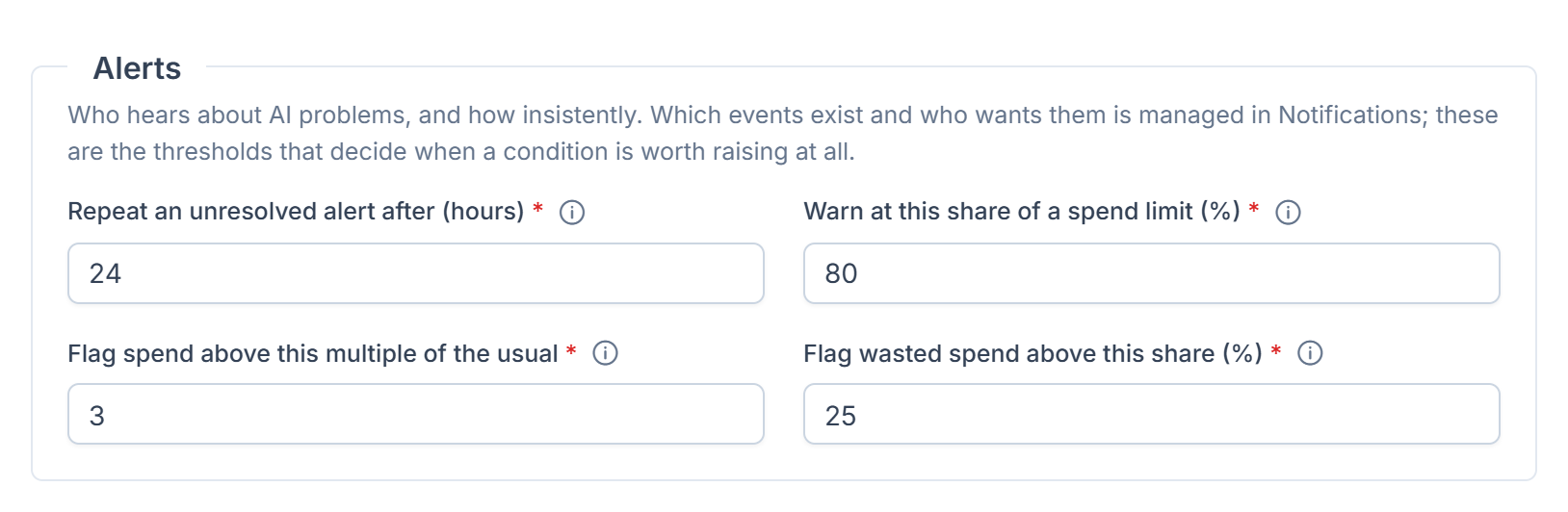
Alerts appear under the bell in the header. Four also go by email:
| Alert | When | |
|---|---|---|
| AI spend ceiling reached | A provider reached its daily or monthly limit. | Yes |
| AI spend approaching its ceiling | A provider passed Warn at this share of a spend limit (%), 80% unless changed. | |
| AI spend well above its usual level | Today's spend reached Flag spend above this multiple of the usual, 3 times unless changed. | |
| A large share of AI spend is being wasted | Retried, failed-over or cut-off calls passed Flag wasted spend above this share (%). | |
| AI model retired upstream | A provider no longer lists a model on your rate card. | Yes |
| AI catalogue differs from the provider | Details a provider publishes differ from your rate card. | |
| AI credentials rejected | A provider rejected its key during the daily check. | Yes |
| AI provider unreachable | A provider couldn't be reached during the daily check. | |
| AI requests are failing over | Requests are being answered by a backup provider, which usually means the first one is broken. | |
| No AI provider could serve a request | Every provider failed for a request. | Yes |
| AI alert cleared | A problem you were alerted about has gone. |
An alert is sent once when a problem starts, and again only after Repeat an unresolved alert after (hours), 24 unless changed, or as soon as its details change. When the problem goes, you get AI alert cleared.
With Notification Manager, the alerts are listed under AI Manager. You can turn each one off, change its channels or edit its wording there. See Turn a notification on or off.
Tip: The checks run with your Laramin's scheduled jobs. If no alert ever arrives, check when they last ran on Developer Tools › Scheduler, and see Scheduled jobs don't run.
Thanks. That helps us decide what to write next.
Thanks for telling us what was missing.
You already answered for this article today. Thanks.
We got a lot of answers from your network just now. Try again in a few minutes.
We couldn't send that. Check your connection and try again.
Links in this article
Printed from help.laramin.in. The online article may have changed since.