Set your business's terms for a party, or end the relationship
Record who owns the relationship, the team, currency, payment terms and credit your business has agreed with a party, and end the relationship without touching other businesses.
- Applies to
- Organization 3.1 and later
- Who can do this
- Administrator
- Permission
feature.org. party.edit - Where
- Organization › Parties
On this page
Before you start
- You need
feature.. If you hold only Edit Party (Own) (org. party.edit feature.), you can change the terms only where you're the Relationship owner.org. party. edit_own - Work in the workspace of the business whose terms these are. In All Workspaces the Business Profile shows one row per business, and you can read them but not change them. See Switch workspace.
- The Business Profile is created with the party, or when another add-on brings the party into your business. You can't add one by hand.
Set the terms
-
Open Organization › Parties.
-
Open the party's row actions menu and select Business Profile.
-
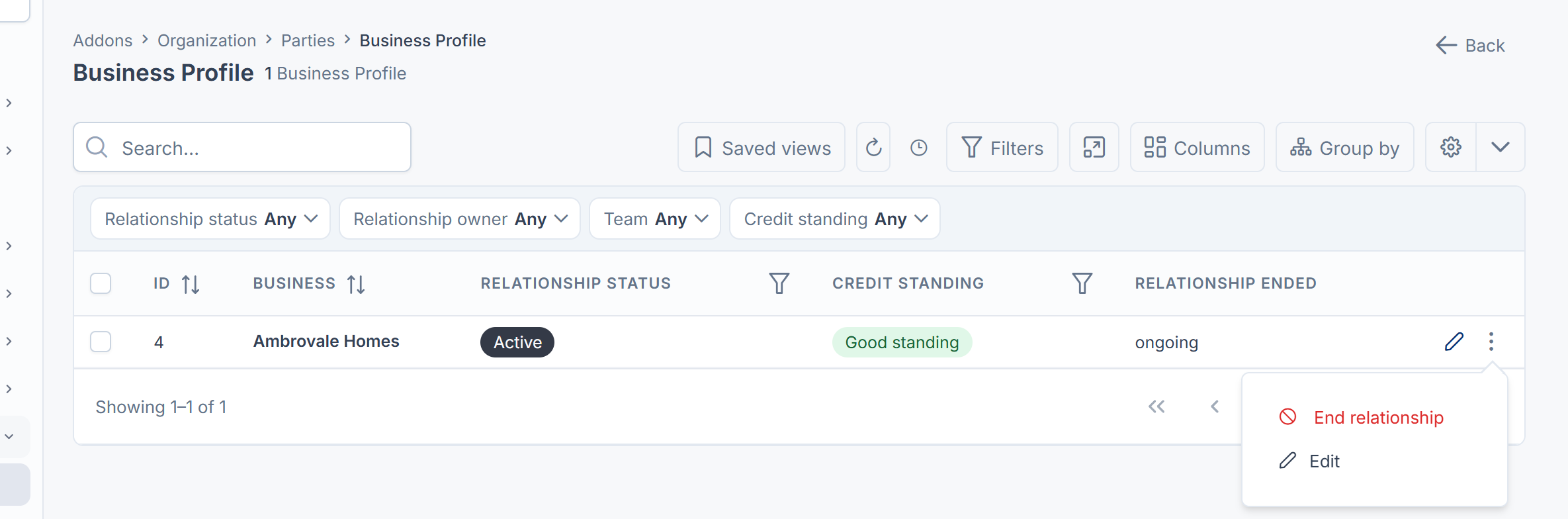
Open your business's row actions menu and select Edit.
-
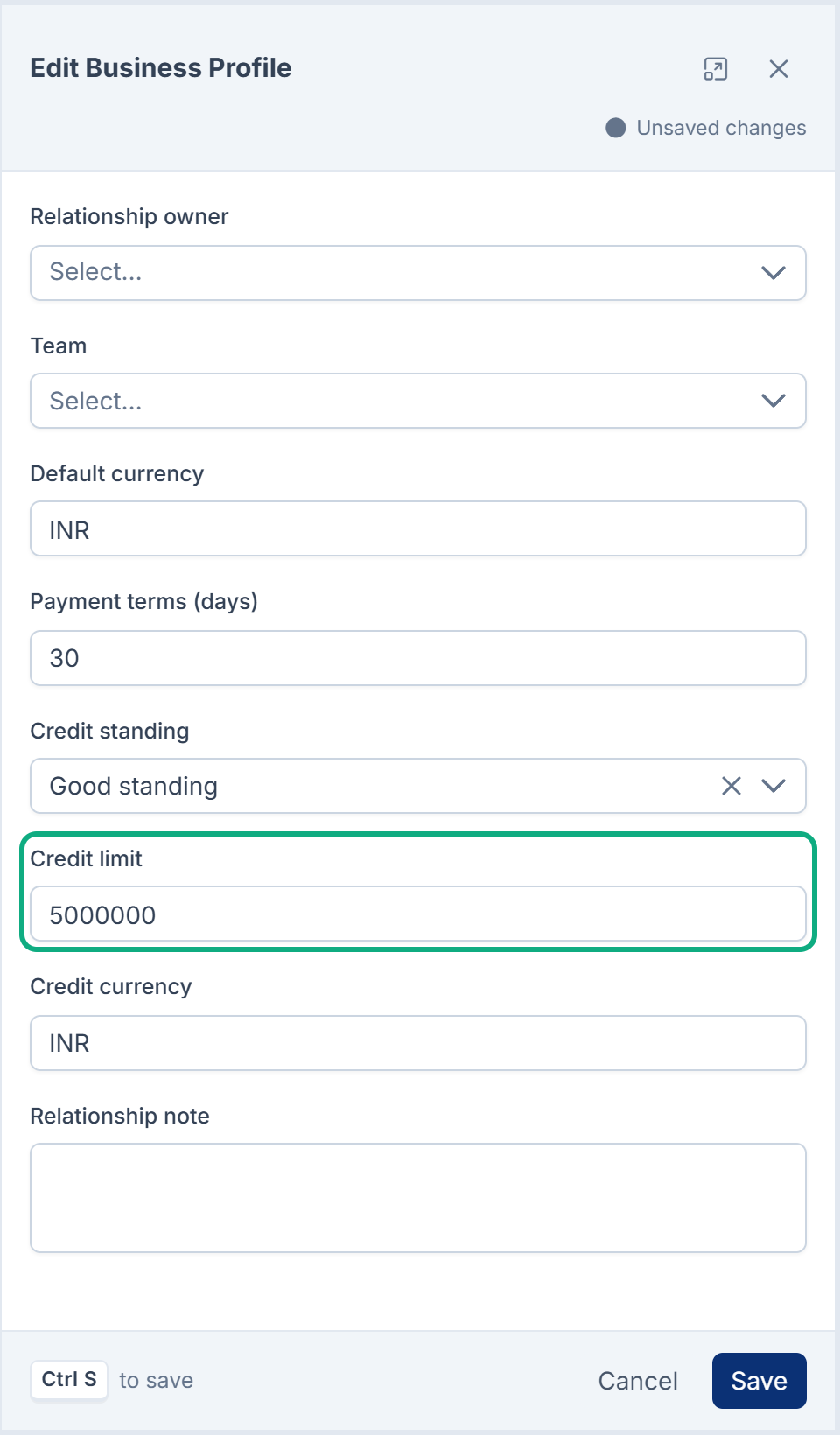
Choose the Relationship owner: the person in your business who looks after this party. The list shows the members of your current workspace.
-
Choose the Team, from the teams of your current workspace.
-
Enter the Default currency as a three-letter code, such as
INR. -
Enter the Payment terms (days), from 0 to 365.
-
Choose the Credit standing: Good standing, Watch or On hold.
-
If you extend credit, enter the Credit limit and the Credit currency. Enter the limit in the currency's smallest unit (paise or cents): for ₹50,000.00, enter
5000000. The form doesn't say so, and it shows the limit the same way when you open it again. -
Add a Relationship note if it helps.
-
Select Save.
Laramin says Business profile saved.
These terms are your business's alone. Another business that deals with the same party keeps its own.
End the relationship
When your business stops dealing with a party:
-
On the party's Business Profile, open your business's row actions menu and select End relationship.
-
Laramin asks End this business relationship? The party and every other business it deals with are unaffected, and the history stays. Confirm.
Laramin says Business relationship ended. The Relationship status becomes Ended, and Relationship ended is today.
The party then leaves your Parties list. Organization's screens can't bring it back. Another add-on can: adding the same person as a Property CRM client, for example, starts a new relationship.
End the relationship, don't delete the party
Delete in the Parties list deletes the party itself, and a party is shared. Deleting it removes it for every business that deals with it, not only yours. Laramin only checks that the party takes part in your business, and the confirmation doesn't warn you. In the other businesses, the party leaves their Parties list, and their records that use it, such as a Property CRM client, lose its name and contacts.
So when your business is done with a party, end the relationship. Delete a party only when the record should never have existed, for example a test record nobody else uses.
A deleted party can be restored from the list's trash by someone with Restore on the Party row. A party that was merged into another can't be restored or deleted for good: Laramin says it's a redirect that other records depend on. See Delete, restore and act on records in bulk.
What happens next
Your terms show on the party's Party 360 under Commercial terms, except the credit limit: it isn't shown there or in the Business Profile list. To see it, open your business's row and select Edit. If you're in All Workspaces and the party deals with more than one of the businesses you can see, that card leaves the terms empty, because each business has its own.
Thanks. That helps us decide what to write next.
Thanks for telling us what was missing.
You already answered for this article today. Thanks.
We got a lot of answers from your network just now. Try again in a few minutes.
We couldn't send that. Check your connection and try again.
Links in this article
Printed from help.laramin.in. The online article may have changed since.