Property CRM settings
Every Property CRM setting: record codes, lead timing, alerts and auto-replies on the General tab, and what the dashboard shows on the Dashboard tab, with their defaults.
- Applies to
- Property CRM 5.1 and later
- Who can do this
- Administrator
- Where
- Property CRM › Settings
On this page
Open Property CRM › Settings. The same panel is also in the Settings hub, under Property CRM. To see it you need feature.; to change it, feature.. Property CRM Admin and Manager can change it. Agent and Viewer can only read it. Select Save changes after editing a tab. See How the settings hub works.
The default country and state that Property CRM forms start with aren't here. They come from Default Country and Default State on the System panel.
General
Record codes
Each new client, property, requirement and inquiry gets a code made of a prefix and a number, such as PROP-000012. Changing a format affects only records created afterwards. Existing codes never change.
| Setting | What it does | Default | Notes |
|---|---|---|---|
| Client Code Prefix | Text before the number in a new client code. | CLT- | Up to 16 characters. |
| Client Code Digits | How many digits the number is padded to. With 6, the 123rd client is 000123. | 6 | 1 to 10. |
| Property Code Prefix | As above, for properties. | PROP- | Up to 16 characters. |
| Property Code Digits | As above, for properties. | 6 | 1 to 10. |
| Requirement Code Prefix | As above, for requirements. | REQ- | Up to 16 characters. |
| Requirement Code Digits | As above, for requirements. | 6 | 1 to 10. |
| Inquiry Code Prefix | As above, for inquiries. | INQ- | Up to 16 characters. |
| Inquiry Code Digits | As above, for inquiries. | 6 | 1 to 10. |
Lead timing
| Setting | What it does | Default | Notes |
|---|---|---|---|
| Lead Response Window (hours) | How long a new inquiry may wait before the Inquiries list flags it as Never contacted, in red. Also how long a contacted or qualified inquiry may sit unchanged before it's flagged as stuck. | 24 | 0 to 720. 0 never flags. |
| Requirement Stale After (days) | How long an active requirement may sit unchanged before the Requirements list flags it. | 30 | 0 to 365. 0 never flags. |
Alerts and auto-replies
| Setting | What it does | Default | Notes |
|---|---|---|---|
| Lead Alert Recipients | The people alerted when a new inquiry arrives, from any channel, and when an inquiry is converted and nobody is assigned to it. | Nobody | Lists every active user, but only those who can work in the inquiry's business are told. Leave it empty to send no team alert for these. |
| Listing Expiry Reminder (days before) | Tells the person who added a property this many days before its Listing Expires On date, not its assigned agent. | 0 (off) | 0 to 365. Checked once a day, for Available properties. |
| Auto-acknowledge new leads | Sends each new lead an automatic reply saying their inquiry was received: by email, and by SMS or WhatsApp if a message template exists for them. | Off | |
| Send client welcome message | Sends an automatic welcome to a lead when they're converted into a client. | Off |
When a property is sold or rented, the person who added it is told, not its assigned agent. When a requirement is fulfilled, the person who added the requirement is told. If Laramin has no record of who added the record, Lead Alert Recipients are told instead. These alerts have no setting of their own.
The message text and the channels for each alert are set in the Notification Manager add-on, when your Laramin has it. Without it, no alert is sent. If an alert doesn't arrive, see You aren't alerted to new inquiries.
Dashboard
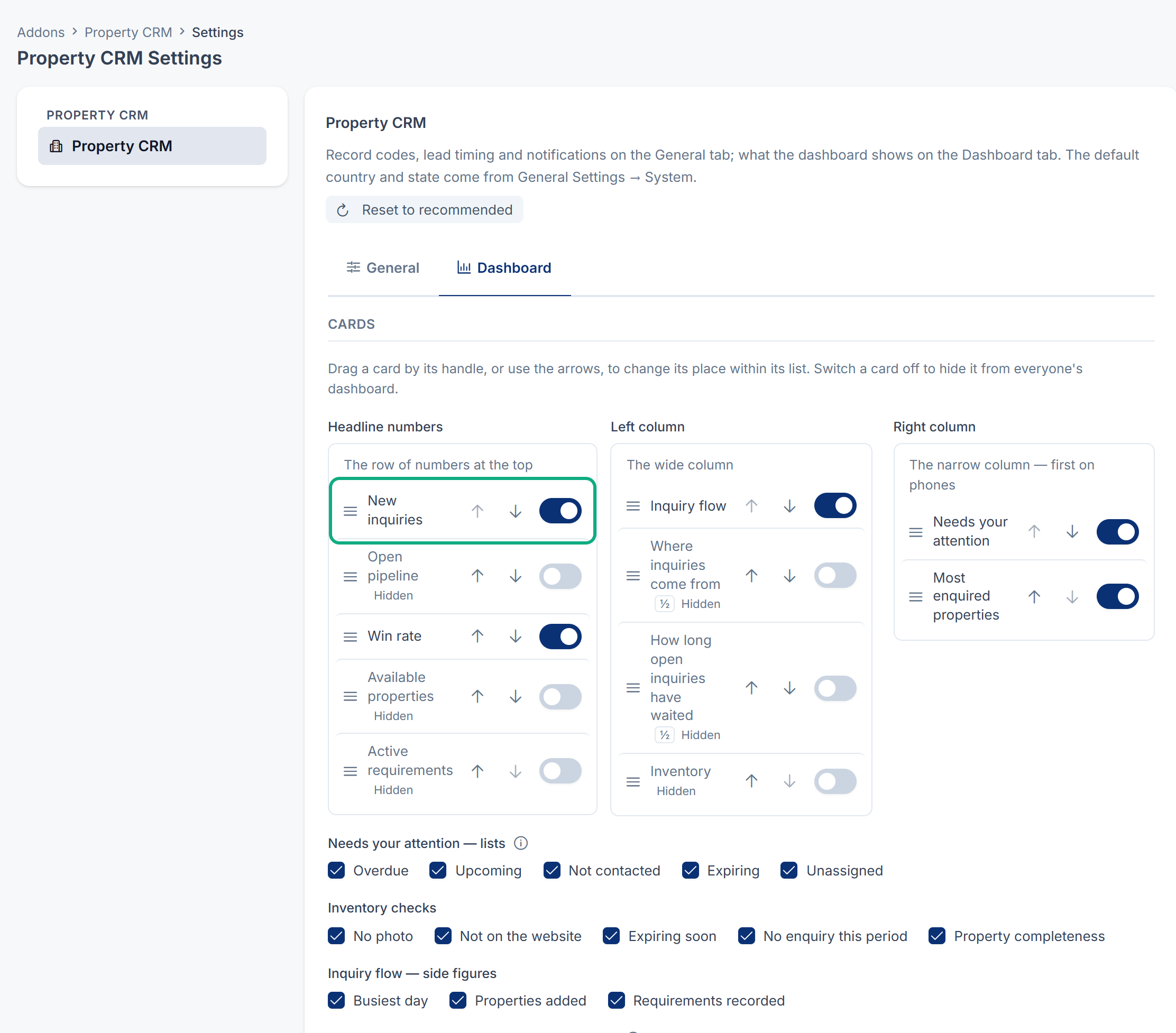
Cards
| Setting | What it does | Cards |
|---|---|---|
| Headline numbers | The row of numbers at the top. | New inquiries, Open pipeline, Win rate, Available properties, Active requirements |
| Left column | The wide column. | Inquiry flow, Where inquiries come from, How long open inquiries have waited, Inventory |
| Right column | The narrow column, shown first on phones. | Needs your attention, Most enquired properties |
Switch a card off to hide it from everyone's dashboard. Drag a card by its handle, or use the arrows, to move it within its list. All cards are on by default. If Property CRM was installed while your business had no data yet, the dashboard starts with a smaller set.
| Setting | What it does | Lines |
|---|---|---|
| Needs your attention — lists | The lists on the Needs your attention card. Untick all five and the card is hidden. | Overdue, Upcoming, Not contacted, Expiring, Unassigned |
| Inventory checks | The checks on the Inventory card. | No photo, Not on the website, Expiring soon, No enquiry this period, Property completeness |
| Inquiry flow — side figures | The extra figures beside Inquiry flow. | Busiest day, Properties added, Requirements recorded |
| Show a tip when one source clearly does best | Shows a tip on Where inquiries come from when the best source's win rate is at least the Source tip ratio times the busiest source's. | On by default. |
Everything is ticked by default. Unassigned shows only to people who can assign inquiries, and Overdue and Upcoming need the CRM add-on.
Rules
These three numbers apply to the whole business. Each workspace can set its own on its workspace settings page. See Change a workspace's settings.
| Setting | What it does | Default | Allowed |
|---|---|---|---|
| Expiring means ending within (days) | What counts as expiring, for the Expiring list and the inventory check. Separate from Listing Expiry Reminder (days before). | 7 | 1 to 90 |
| Show a win rate after (ended inquiries) | Below this many ended inquiries, a source shows a dash instead of a win rate. | 5 | 1 to 50 |
| Source tip ratio (× the busiest source) | How much better a source must do before the tip appears. | 2.0 | 1.5 to 5, one decimal |
Periods
| Setting | What it does | Default |
|---|---|---|
| Offer | The choices in the dashboard's period menu: Last 7 days, Last 30 days, This quarter, Last 90 days and Custom range. Keep at least one. | All five |
| First visit opens on | The period someone sees the first time they open the dashboard. After that, Laramin remembers each person's last choice on their device. It must be one you offer, and can't be Custom range. | Last 7 days |
Reset to recommended puts every card, line, rule and period back to the full dashboard. Workspaces that set their own rule numbers keep them.
Thanks. That helps us decide what to write next.
Thanks for telling us what was missing.
You already answered for this article today. Thanks.
We got a lot of answers from your network just now. Try again in a few minutes.
We couldn't send that. Check your connection and try again.
Links in this article
Printed from help.laramin.in. The online article may have changed since.