Import questions from an exam paper
Add the pages of an exam paper to Paper Queue, have AI extract the questions, check and correct them beside the original page, and import them into the bank.
- Applies to
- Question Bank 3.5 and later
- Who can do this
- Platform owner, Administrator, Team member
- Permission
feature.qb. paper_queue. create - Where
- Question Bank › Paper Queue
On this page
How it works
Each page of a paper is one entry in Paper Queue. AI reads the page and extracts its questions as structured data. You compare that with the page, correct it, and then import it: each extracted question becomes a question in the bank, attached to the paper's exam, and set to Active.
In statuses: Created, then Processing, then Extracted. You check and correct the extract, then import it, and the page becomes Imported.
Before you start
- An AI provider must be set up in the AI Manager add-on. An image page needs a model that can read images; HTML and JSON pages need one that generates text. Without one, a page is marked Skipped (no AI) and nothing is charged. See Connect an AI provider.
- Your platform owner must have a queue worker running on the server, because extraction runs in the background.
- Add the exam the paper belongs to, with its Available languages.
- You need Create Paper Queue (
feature.). To import, you need Bulk Import Paper Queues (qb. paper_queue. create feature.).qb. paper_queue. bulk_import
Add a page
-
In the sidebar, open Question Bank › Paper Queue.
-
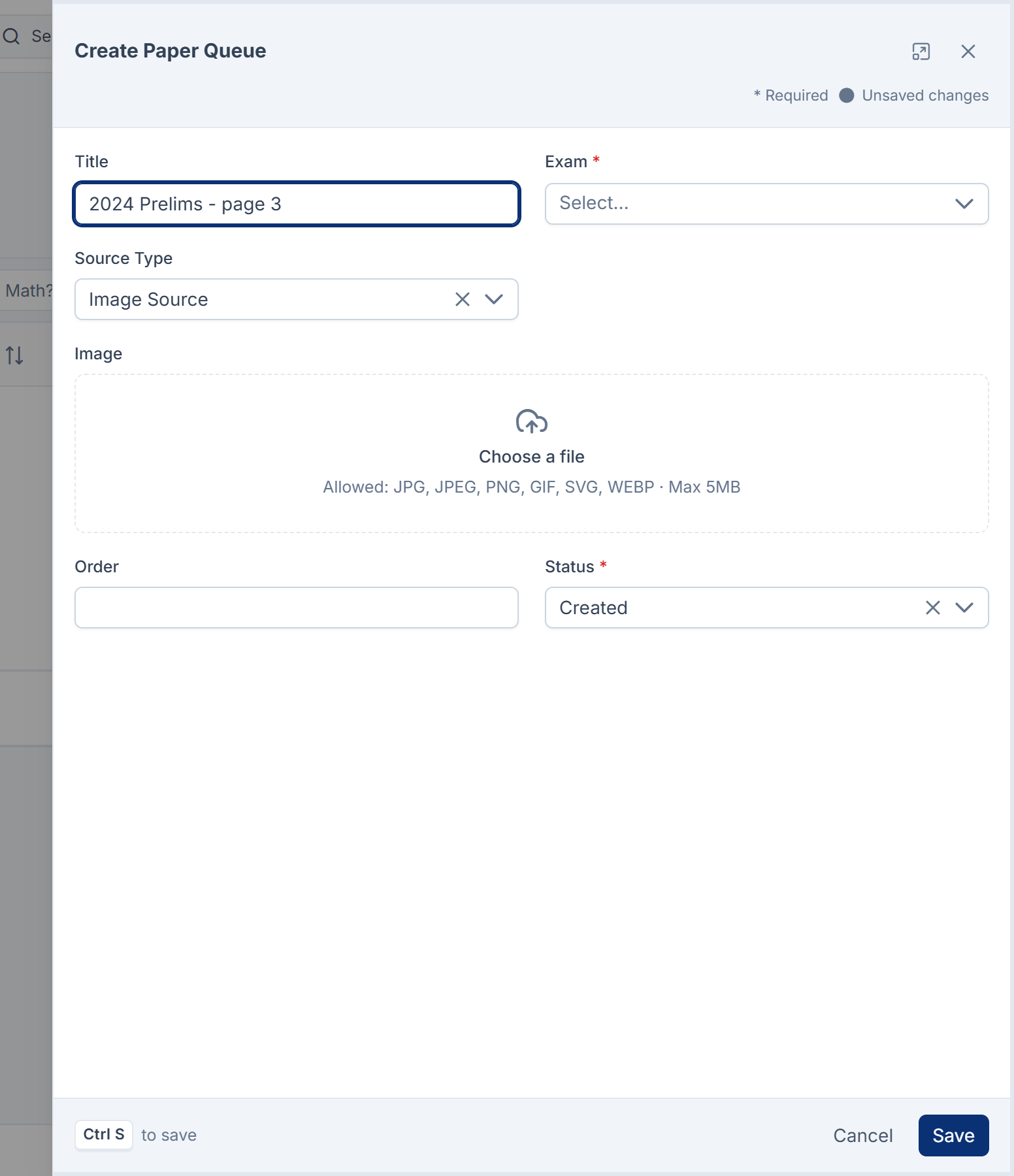
Select New Paper Queue.
-
Enter a Title, such as
2024 Prelims - page 3. -
Choose the Exam.
-
Choose the Source Type, and add the page:
- Image Source: upload a picture of the page in Image.
- HTML Source: paste the page's markup in HTML Source.
- JSON Source: paste questions you already have as a JSON array in JSON Source. It's checked when you save.
-
Enter the page's Order in the paper.
-
Leave Status at Created.
-
Select Save.
Repeat for each page. Image takes one picture, so there's no way on screen to upload several page images at once, although the add-on's texts describe one.
Get the page read
Extraction doesn't start when you save a page.
- Your platform owner reads waiting pages (status Created or Re-Queued) by running
php artisan paperqueue:processon the server. It takes one page per run by default;--limit=10takes ten. These pages go to a queue namedprocess_, so the queue worker must listen to it, for examplepaper_ queue php artisan queue:work --queue=process_. Question Bank doesn't schedule this command, so pages wait until someone runs it or schedules it.paper_ queue,default - You can send one page to be read straight away with ReQueue the Paper on its review screen (see below).
While a page is read its status is Processing. It then becomes Extracted, or Failed if reading failed three times. The Cost (USD) column shows what reading it cost, in rupees.
Check and correct the extract
-
On Question Bank › Paper Queue, select Review on the page's row.
-
The page is on the left. On the right, JSON Source holds the extracted questions, Questions lists them one by one, and Review Comments holds notes from earlier reviews.
-
Correct the extract in JSON Source. If it isn't valid JSON you see This is not valid JSON, so it cannot be saved yet.
-
Select Save. To undo your unsaved changes, select Discard changes.
-
Use Back and Next to move to the paper's previous and next pages.
Read a page again
If the extract is poor, have the AI try again with extra instructions.
-
On the review screen, select ReQueue the Paper.
-
Choose the Complexity Level: Simple, Medium or High.
-
Optional: in Additional Rules / Review Comments, write what the AI got wrong, such as "Statements are numbered with Roman numerals". This is saved to Review Comments too.
-
Optional: turn on Need Verification?.
-
Select ReQueue the Paper.
The page becomes Re-Queued and is read again in the background. You need View Paper Queue Requeue (feature.), or Edit Own Paper Queue Only for your own pages.
Mark where a page stands
Select Status on the review screen and choose a status such as Review Pending or Cancelled, then select Update. The statuses the pipeline sets itself, such as Extracted and Imported, aren't offered.
Import the questions
- On Question Bank › Paper Queue, select Import on the page's row. To import several pages, select their rows and choose Import from the bulk actions.
Import is only offered for pages that have an extract. Each extracted question is added to the bank, attached to the page's exam. The page's Progress shows imported against extracted questions, and its status becomes Imported, or Partial Inserted if not every extracted question is in the bank.
Importing again skips questions already imported, unless you've since deleted them from the bank, in which case they're added again.
What happens next
- Open Question Bank › Questions, filter by Exam, and check the imported questions. Add the Paper Queue column to see which page each came from. See Write a question in the question builder.
- Use Set Topic to file the new questions under a topic.
Thanks. That helps us decide what to write next.
Thanks for telling us what was missing.
You already answered for this article today. Thanks.
We got a lot of answers from your network just now. Try again in a few minutes.
We couldn't send that. Check your connection and try again.
Links in this article
Printed from help.laramin.in. The online article may have changed since.