Print a question paper and OMR answer sheet
Turn a selection of questions, or a mock test, into a printable question paper with optional answers, shuffling, answer key and watermark, and print the matching OMR bubble sheet.
- Applies to
- Question Bank 3.5 and later
- Who can do this
- Administrator, Team member
- Permission
feature.qb. question. bulk_export - Where
- Question Bank › Questions
On this page
Before you start
- You need Bulk Export Questions (
feature.).qb. question. bulk_export - Find the questions first: filter the Questions list by Exam, Topic, Type or any other column. See Filter a list.
Export a question paper
-
In the sidebar, open Question Bank › Questions.
-
Select the questions' rows.
-
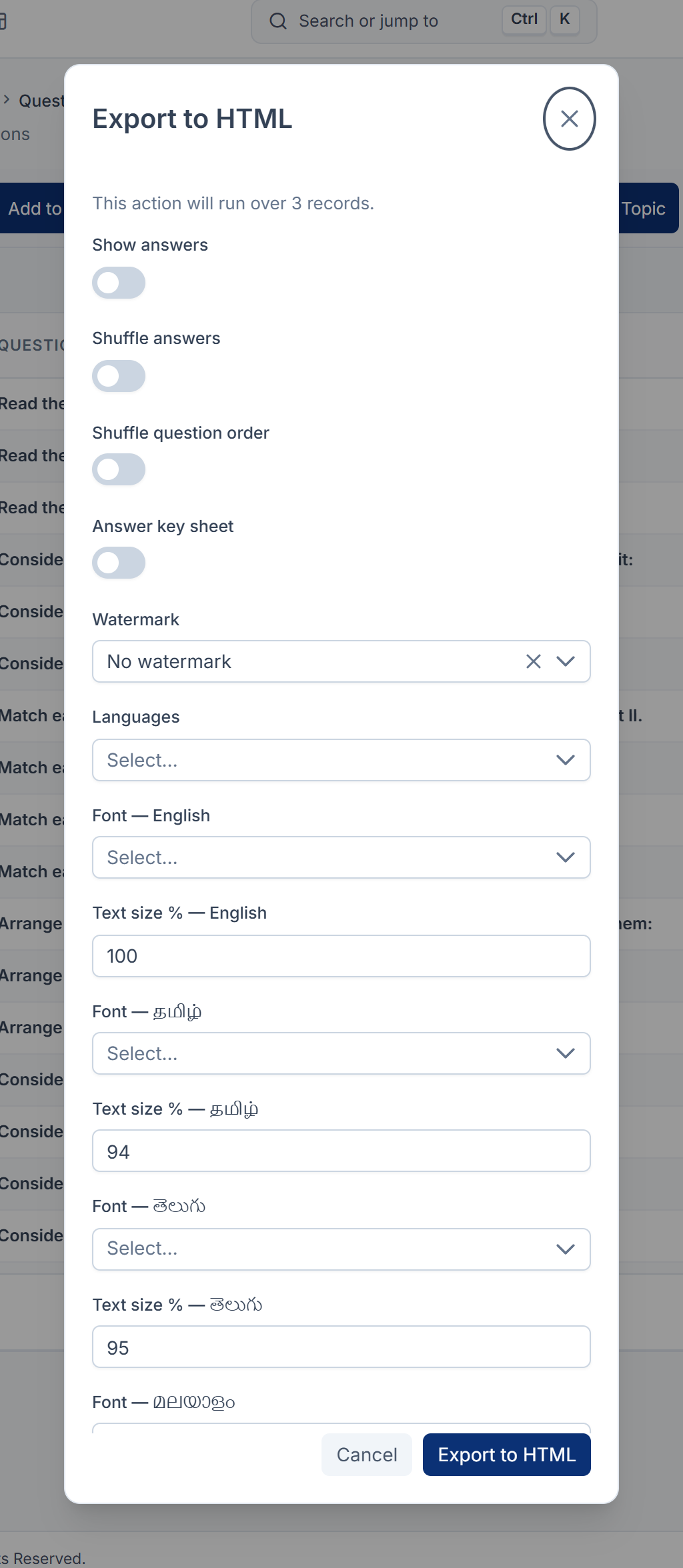
From the bulk actions, choose Export to HTML.
-
Choose the options:
Option What it does Show answers Marks the correct answer on each question. For an invigilator's or teacher's copy. Shuffle answers Prints each question's answer choices in a random order. Shuffle question order Prints the questions in a random order and numbers them again. Answer key sheet Adds a last page listing each question number and its answer, for checking after the paper is worked. Watermark Prints a mark across every page: No watermark, System name, System logo, My email address or Custom text (up to 60 characters, entered in Watermark text). It isn't stored anywhere. Languages The languages to print. Leave empty to print every language each question has. A question with no text in a chosen language says Not available in the selected language. Font and Text size %, for each language The typeface and size for that language. 100% is the size the language normally prints at. -
Confirm.
The paper opens in a new tab. Its toolbar lets you switch the answers, shuffling and answer key on or off without starting again. To save it as a PDF, select Print / Save as PDF and choose your browser's PDF printer.
Print the same paper again
A shuffled paper prints a Seed number. The paper's address holds every choice you made, including the seed, so opening the same address again gives exactly the same paper. Keep the link if you may need to reprint it.
Print the OMR answer sheet
An OMR sheet is a bubble sheet candidates shade with a pencil. Print a blank one for each candidate and an answer-key copy for marking: lay the shaded sheet on the key to see the mistakes.
From the paper
The paper's toolbar has an OMR answer sheet link, for papers of up to 200 questions. Use it for a shuffled paper: the sheet it opens follows the paper's shuffle and seed, so the key matches the paper.
From the Questions list
-
Select the same questions on Question Bank › Questions.
-
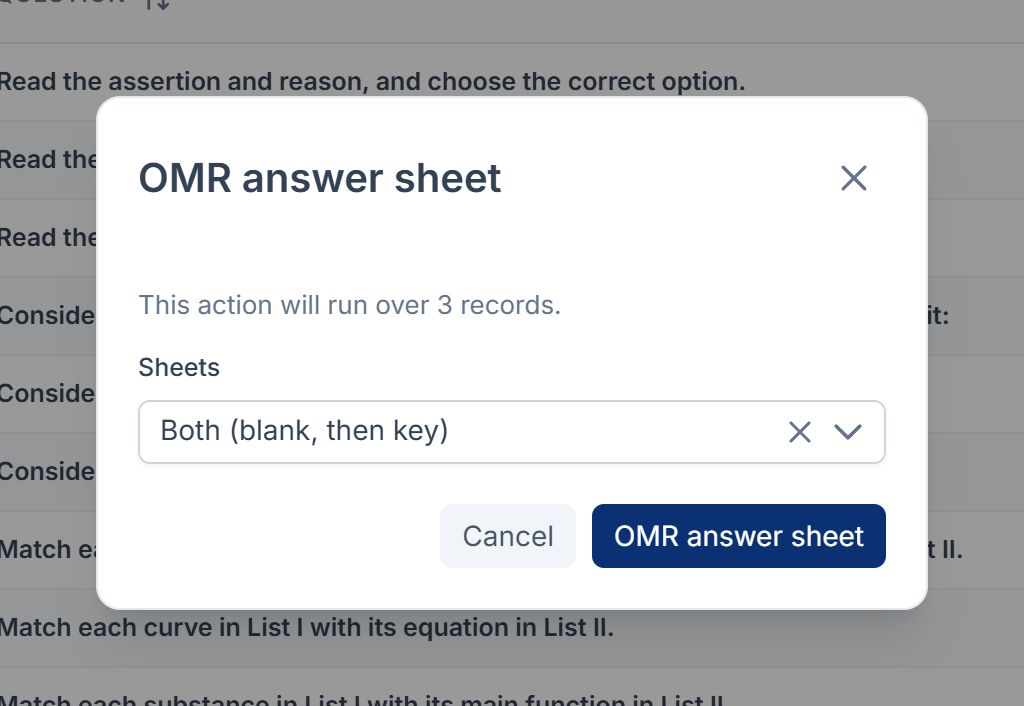
From the bulk actions, choose OMR answer sheet.
-
In Sheets, choose Both (blank, then key), Blank only or Answer key only. Print both together so they match.
-
Confirm.
The sheet opens as a PDF, ready to print. It has boxes for the candidate's name, batch, mobile number, test date and a 9-digit enrollment number, and five answer columns, A to E.
- A sheet holds up to 200 questions. With more, you see An OMR sheet holds 200 questions and this export has count. Reduce the selection, or export the paper without a sheet.
- The key leaves a question blank when it has no correct answer recorded, or when its correct choice is beyond E. It shades several bubbles when a question has more than one correct answer. A notice lists the questions concerned.
- The sheet's labels print in English, whatever language you work in.
The OMR answer sheet bulk action asks only for Sheets and doesn't carry any shuffling, so its key follows the original order. For a shuffled paper, use the link on the paper instead, and check its key against the paper's Answer key sheet.
Print a mock test
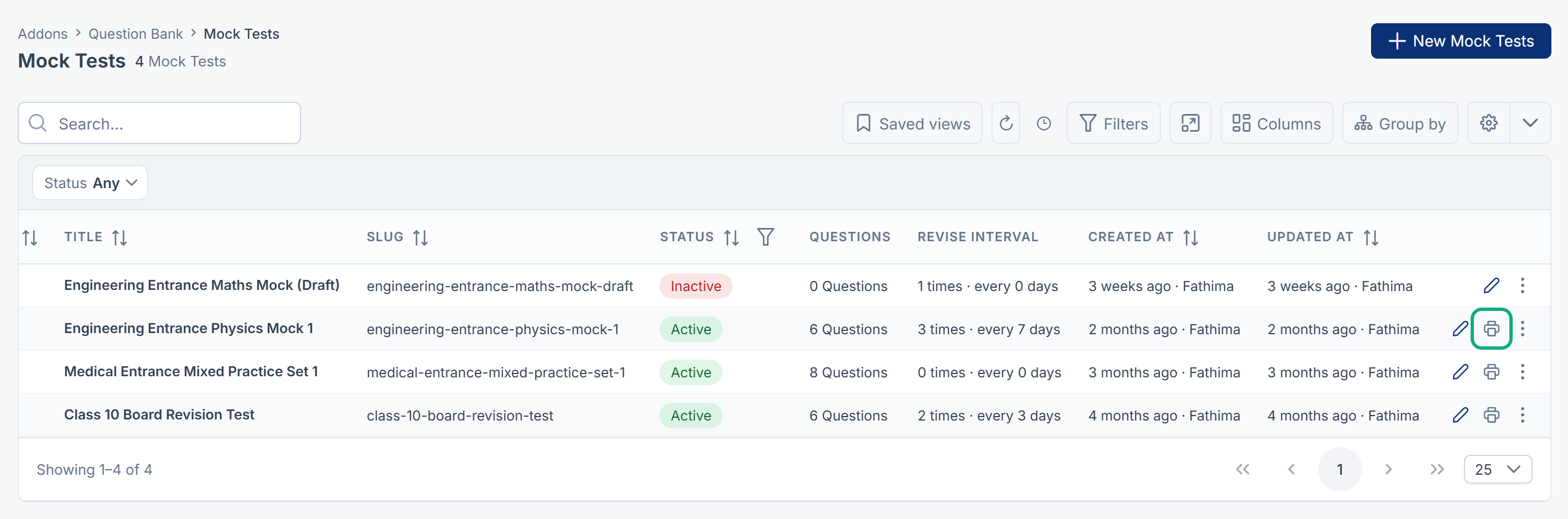
On Question Bank › Mock Tests, select Print on a test's row to print all of its questions as one paper, headed with the test's title and number. Print appears only for tests that have questions.
What happens next
- Create a mock test from the same questions.
Thanks. That helps us decide what to write next.
Thanks for telling us what was missing.
You already answered for this article today. Thanks.
We got a lot of answers from your network just now. Try again in a few minutes.
We couldn't send that. Check your connection and try again.
Links in this article
Printed from help.laramin.in. The online article may have changed since.