Create a mock test
Build a mock test from rules or from questions you pick, set how many attempts learners get and whether they see the answers, and understand why a test's questions freeze once it's been sat.
- Applies to
- Question Bank 3.5 and later
- Who can do this
- Administrator, Team member
- Permission
feature.qb. mock_test. create - Where
- Question Bank › Mock Tests
On this page
Before you start
- You need Create Mock Test (
feature.). To build a test from the Questions list you need Add Questions to Mock Test (qb. mock_test. create feature.) instead.qb. question. add_to_test - Only Active questions go into a test. Check the questions you want are active. See Write a question in the question builder.
Careful: In Question Bank 3.5.2 learners can't take a test: nothing offers a way to start one. My Tests also opens empty in this version, without the tests. See A test can't be taken or has no questions.
There are two ways to build a test:
- From rules, on Mock Tests: say which exams, question types and category to draw from, and how many questions to take.
- From a selection, on Questions: pick the exact questions.
Create a test from rules
-
In the sidebar, open Question Bank › Mock Tests.
-
Select New Mock Tests.
-
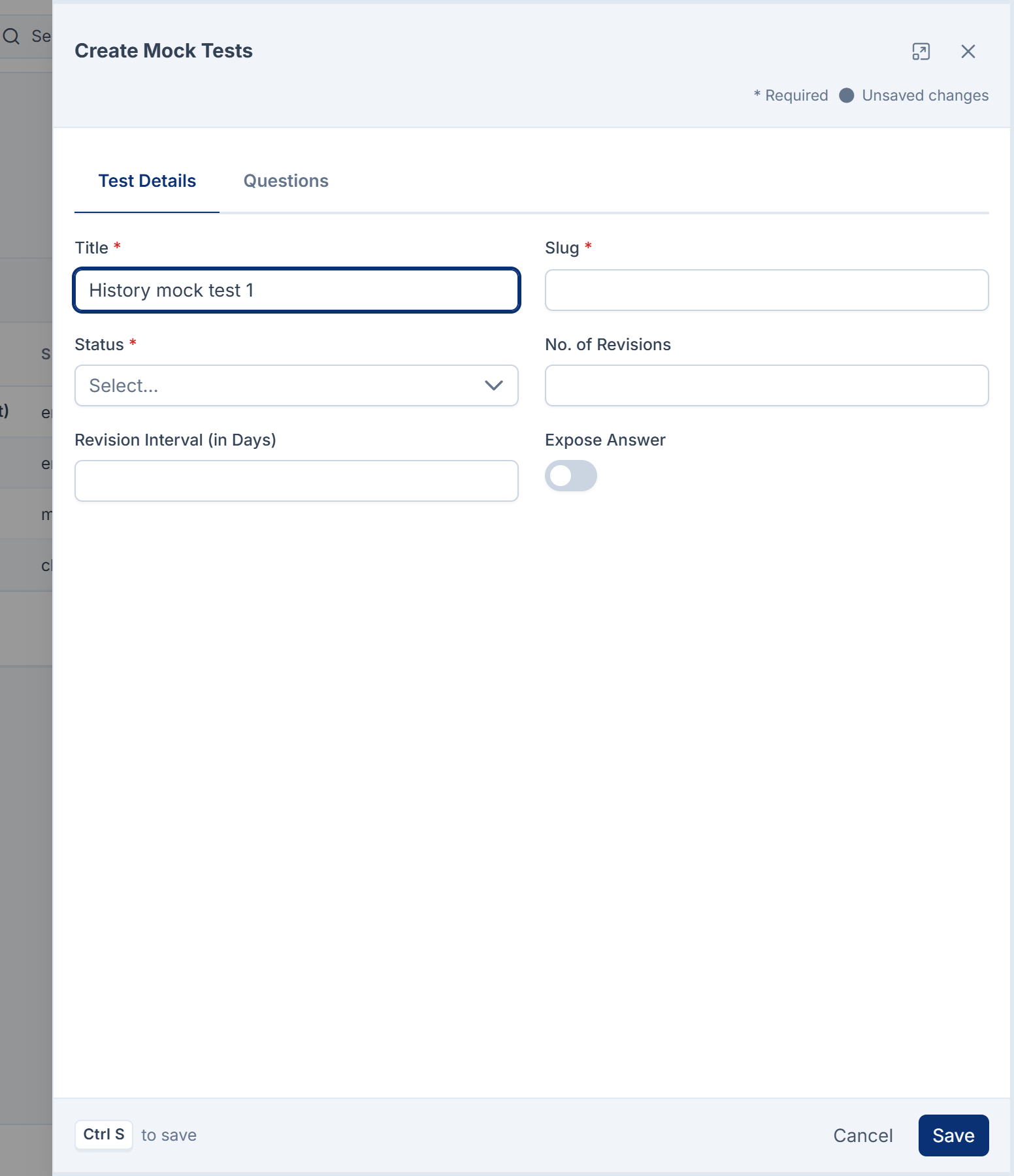
On the Test Details tab, enter the Title, such as
History mock test 1. -
Enter a Slug, such as
history-. It must be unique, and it can't be changed later.mock- test- 1 -
Set Status to Active when the test is ready. Only Active tests count as open to learners.
-
Set the attempt rules:
- No. of Revisions: the most attempts a learner can make, counting the first. Leave
0for unlimited. - Revision Interval (in Days): how many days a learner must wait after starting one attempt before the next. Leave
0for no wait. - Expose Answer: turn on to include the correct answer to each question in a learner's result. Leave it off to include only whether they were right. Learners can't open their results in this version, so they don't see either.
- No. of Revisions: the most attempts a learner can make, counting the first. Leave
-
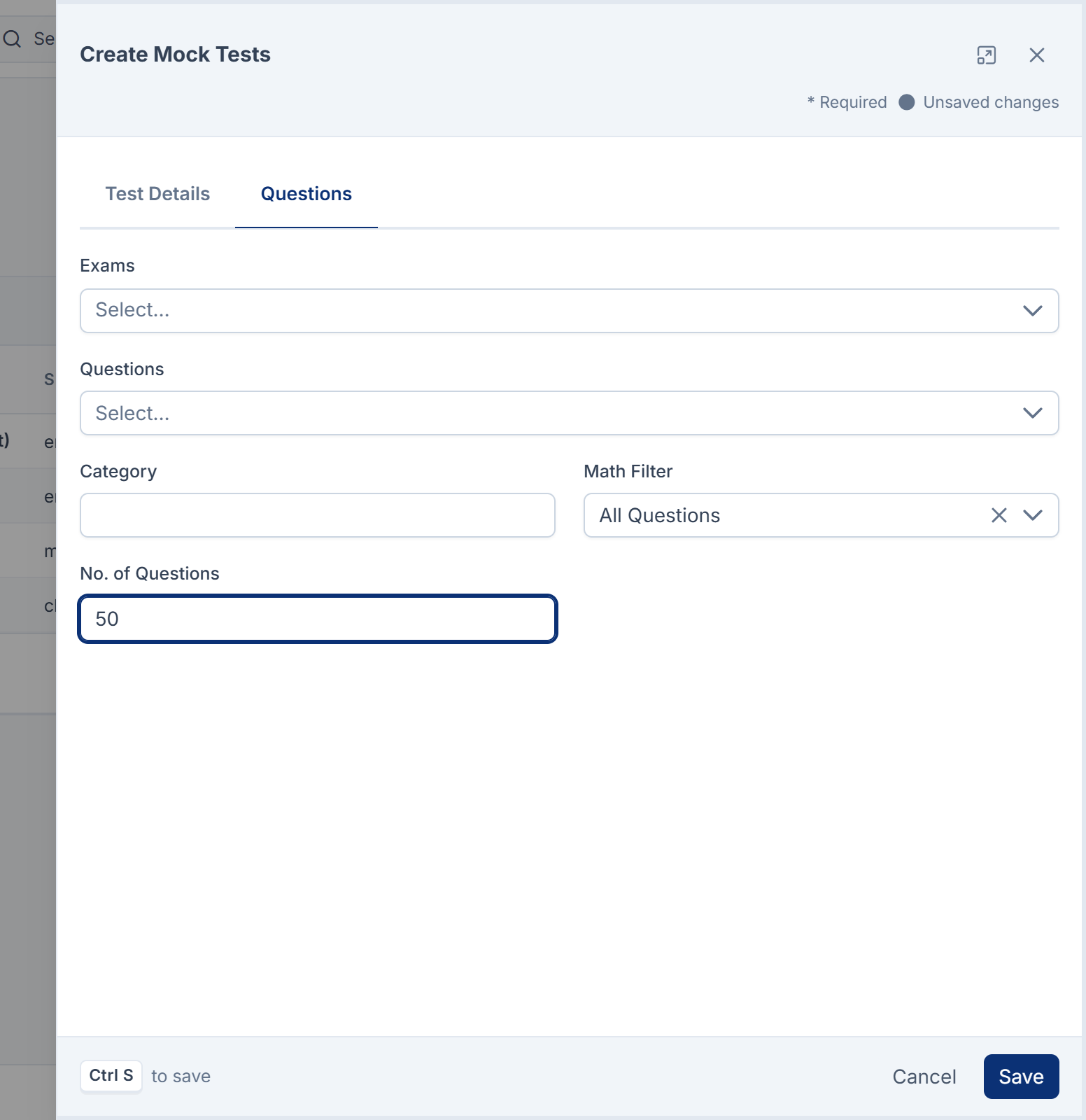
Open the Questions tab and set the rules:
- Exams: the exams to draw from. Leave empty for all.
- Questions: the question types to include. Leave empty for all.
- Category: only questions whose Category contains this text.
- Math Filter: All Questions, Math Questions or Non-Math Questions.
- No. of Questions: how many matching questions to take, such as
50. Enter-1to take all of them, or a range such as50-100to take the 51st to the 100th.
-
Select Save.
You see Mock Test title Created Successfully! The list's Questions column shows how many questions it took.
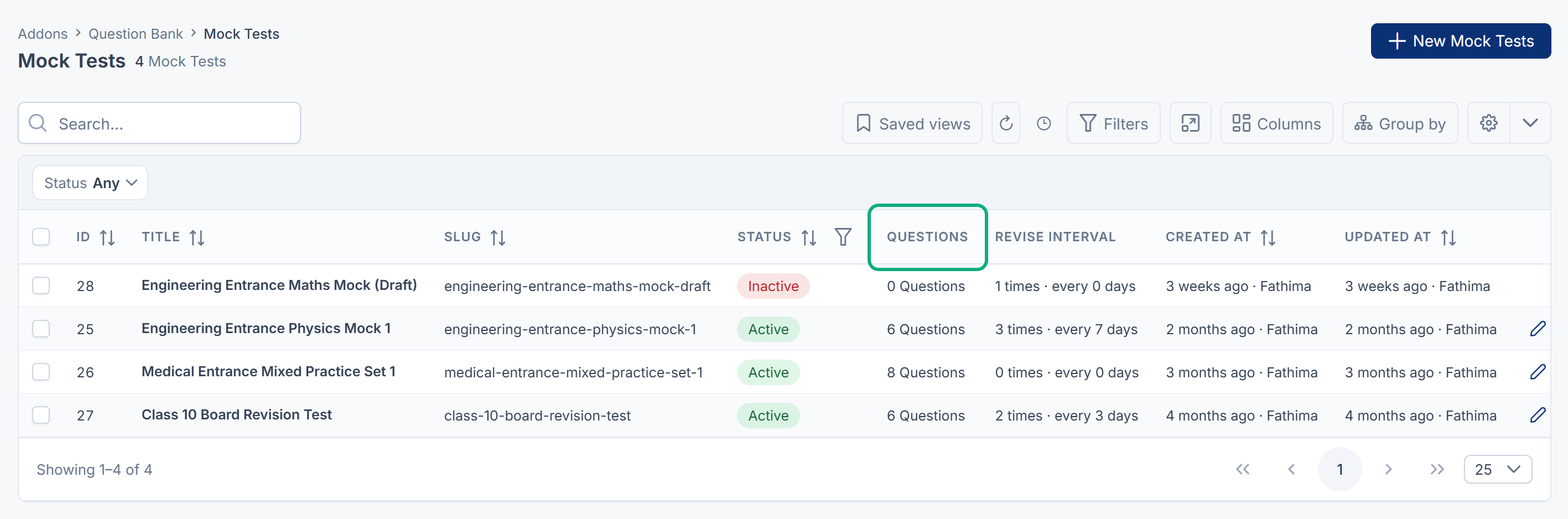
Careful: Fill in No. of Questions. Left empty or at 0, the test takes no questions at all. The matching questions aren't picked at random: the test takes the first ones it finds, usually the oldest.
The rules are applied when you save. Questions you add to the bank later aren't added to the test until you save it again.
Create a test from a selection of questions
-
Open Question Bank › Questions and filter it to the questions you want.
-
Select their rows.
-
From the bulk actions, choose Add to test.
-
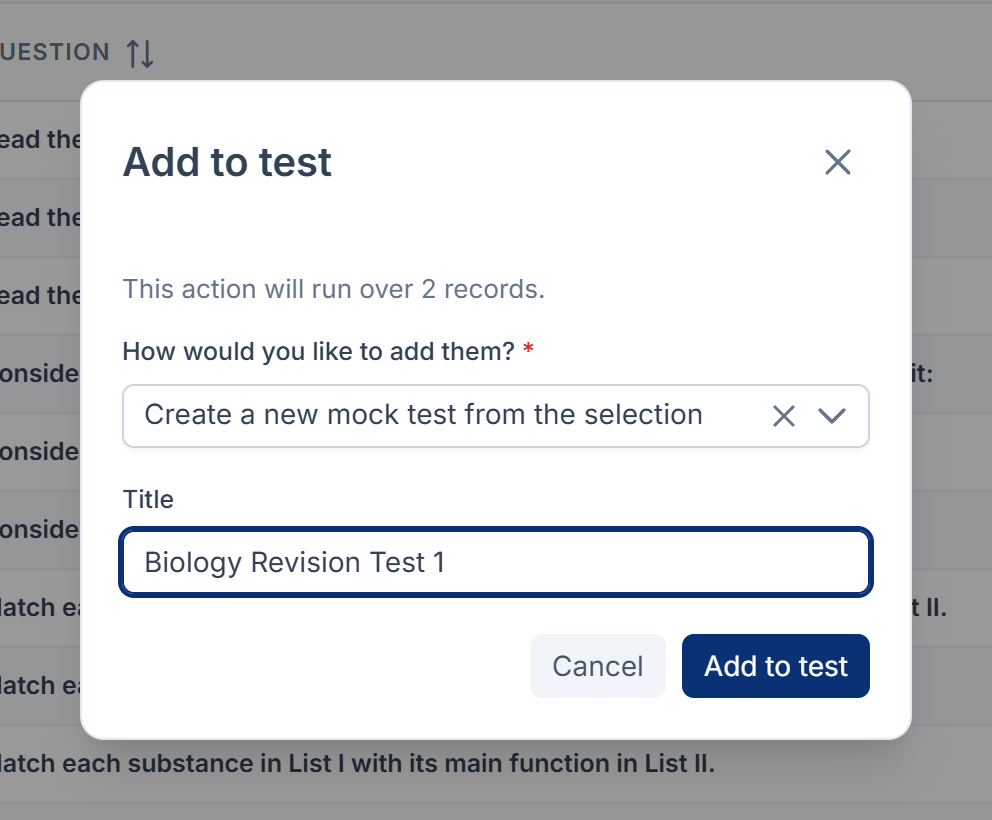
In How would you like to add them?, choose one:
- Create a new mock test from the selection, and enter a Title.
- Add to an existing mock test, and choose the Mock test. Only tests no one has sat yet are offered.
-
Confirm.
A new test is Active, with unlimited attempts and Expose Answer off. Its slug is made from the title. Open it on Mock Tests to change those. Questions already in a test aren't added twice.
Careful: Saving a test that was built from rules runs its rules again and replaces its questions, including any you added from the Questions list. This happens on any save, even a rename, until someone has sat the test. Tests created with Create a new mock test from the selection keep their questions.
Change a test
Open the test's row actions menu and select Edit.
Once anyone has sat the test, the Questions tab disappears and the test's questions are frozen, so learners' answers keep their meaning. You can still change the title, status and attempt rules. Changing No. of Revisions or Revision Interval (in Days) applies straight away to every learner, including those who have already sat it.
Delete a test
Select Delete in the row's actions menu. A test that has submissions can't be deleted: you see title Test submissions should be deleted before Mock test get delete! Delete its submissions on Test Submissions first. See Review test submissions and analytics.
What happens next
- Print the test with Print on its row.
- Review test submissions and analytics.
Thanks. That helps us decide what to write next.
Thanks for telling us what was missing.
You already answered for this article today. Thanks.
We got a lot of answers from your network just now. Try again in a few minutes.
We couldn't send that. Check your connection and try again.
Links in this article
Printed from help.laramin.in. The online article may have changed since.