Write a question in the question builder
Create or edit a question of any of the seven types in the question builder, in every language its exam is published in, then re-file questions under a topic in bulk.
- Applies to
- Question Bank 3.5 and later
- Who can do this
- Administrator, Team member
- Permission
feature.qb. question. create - Where
- Question Bank › Questions
On this page
Before you start
- You need Create Question (
feature.). To change a question you need Edit Question (qb. question. create feature.), or Edit Own Question Only for questions you created.qb. question.edit - Set up the exam, topic and sub topic the question belongs to.
Write a question
-
In the sidebar, open Question Bank › Questions.
-
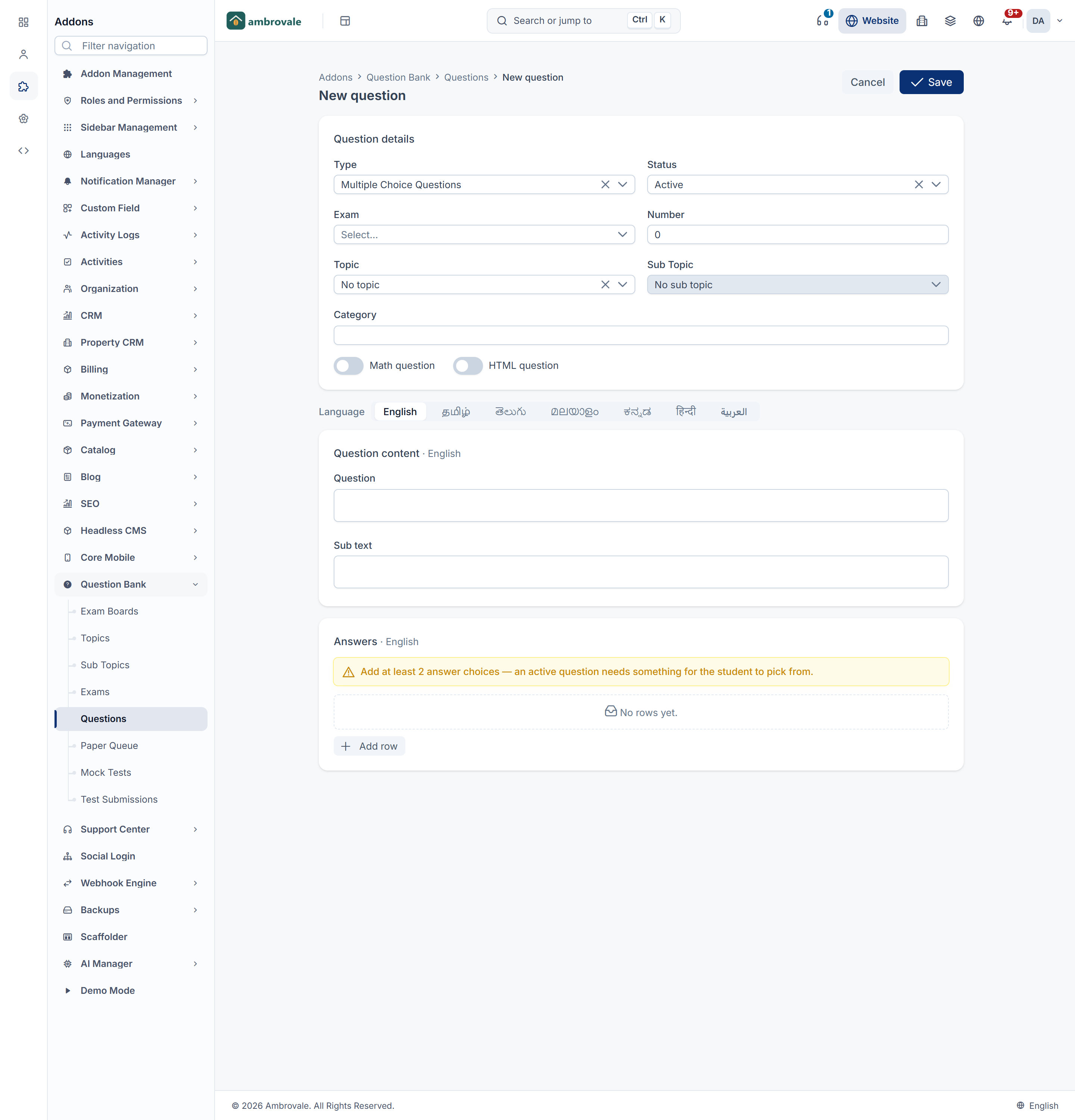
Select New Questions. The question builder opens as a full page, titled New question.
-
In Question details, choose the Type. The Answers card changes to suit it (see below).
-
Set Status. Choose Active for a question that's ready to go into tests. Choose Inactive to save unfinished work: an inactive question is never put into a test.
-
Choose the Exam, and optionally enter the question's Number in the paper.
-
Choose the Topic, then the Sub Topic. Only the chosen topic's sub topics are offered.
-
Optional: enter a Category. Mock test rules can pick questions by it.
-
Turn on Math question if the question has formulas: its text boxes become math editors. Turn on HTML question if you need formatted content, such as a table.
-
If the exam is published in more than one language, a Language switch appears. Choose the first language.
-
In Question content, enter the Question, and optionally a Sub text. For an HTML question, use HTML content.
-
Fill in the Answers card for the type.
-
Switch to each other language and repeat steps 10 and 11 for it. Correct-answer ticks and the order of rows are shared by all languages; only the text is per language.
-
Select Save.
You see Question created. If something is missing, the builder shows the problem at the top and the question isn't saved.
For languages that aren't written in Latin script, such as Tamil, you can type the words phonetically in Latin letters and they're converted as you type.
Fill in the answers for each type
Every row has a Label (such as A or 1) and Text. Drag rows to reorder them. Add rows with Add row or Add answer, and remove them with Remove.
| Type | What to enter |
|---|---|
| Multiple Choice Questions | One row per answer choice. Tick Correct on the right one. |
| Paired MCQs | One row per answer choice, each with a Label and Text plus a Pair label and Pair text. Tick Correct on the right one. |
| Multiple Statements (MCQ) | Under Statements, one row per numbered statement. Under Answer options, the choices, such as 1 and 2 only, with Correct ticked on the right one. |
| Chronological Order | Under Events to order, one row per event; the order of the rows is the correct order. Under Answer options, the choices, with Correct ticked. |
| Match the Following (MCQ) | Under Column headers in Question content, a title for each column. Under Pairs to match, one row per pair, with the left item (Label, Text), the right item (Pair label, Pair text) and a Match key. Under Answer options, the choices, with Correct ticked. |
| Match the Pairs (MCQ) | Under Column headers, a title for each column. Under Pairs to match, one row per pair, ticking Correct on pairs that are correctly matched. Under Answer options, the choices, with Correct ticked. |
| Assertion and Reason | Under Assertion & Reason, an Assertion label and Reason label (such as A and R) and the Assertion and Reason text. Under Answer options, the standard choices, with Correct ticked. |

An Active question must have at least two answer choices, and at least one marked Correct. While you edit, the Answers card warns you:
- Add at least 2 answer choices — an active question needs something for the student to pick from.
- Mark one answer choice as correct, or this question cannot be scored.
The builder won't save without them. If you select Save anyway, it says This question needs at least 2 answer choices for the student to pick from. or Mark at least one answer choice as correct, or the question cannot be scored.
Edit a question
-
On Question Bank › Questions, find the question. Every column can be searched and filtered. See Filter a list.
-
Select Update Question on its row. The builder opens with the question, titled Edit question.
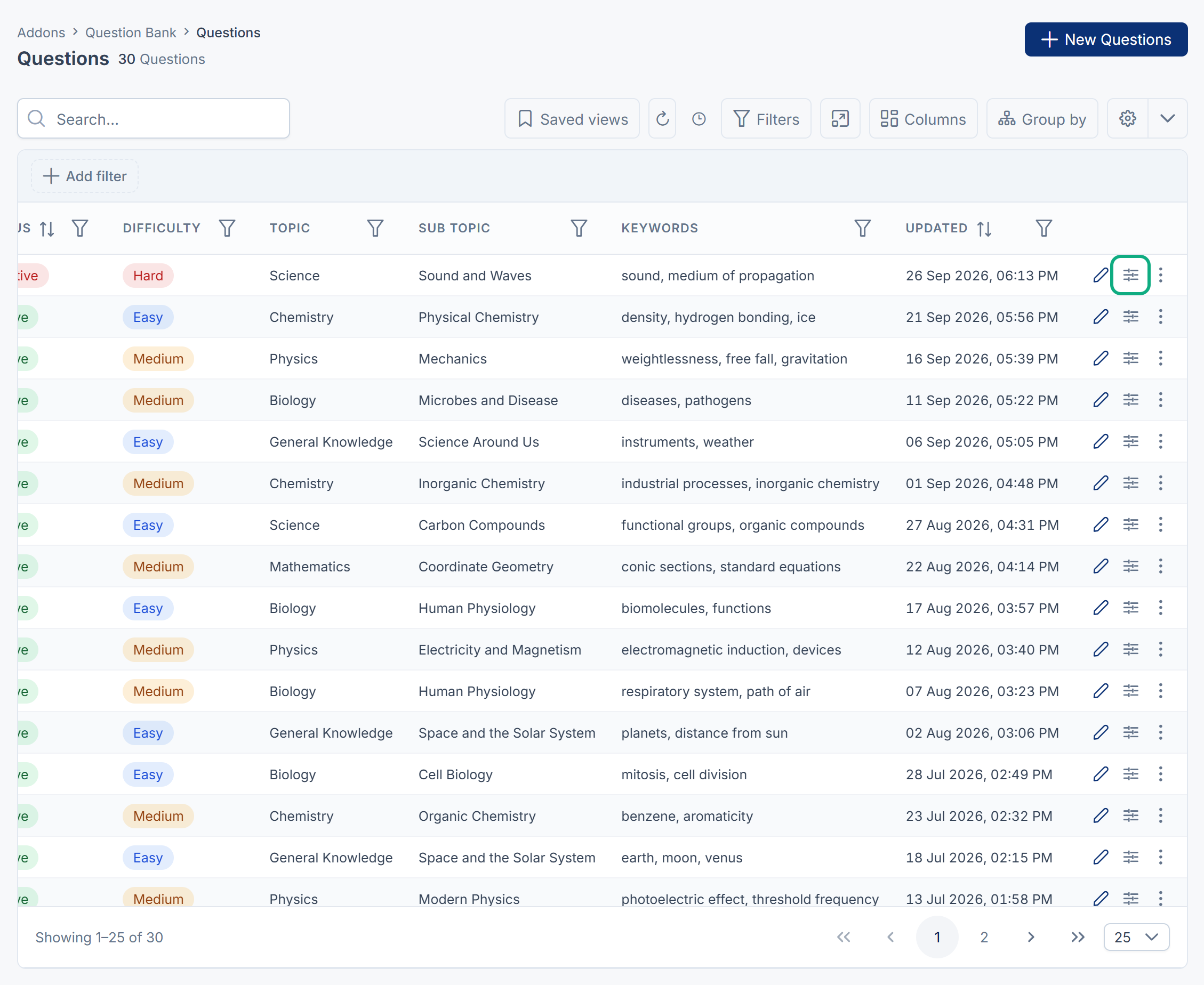
-
Make your changes and select Save. You see Question updated.
To set a question's Difficulty, Keywords or Image, which the builder doesn't show, open the row's actions menu and select Edit instead.
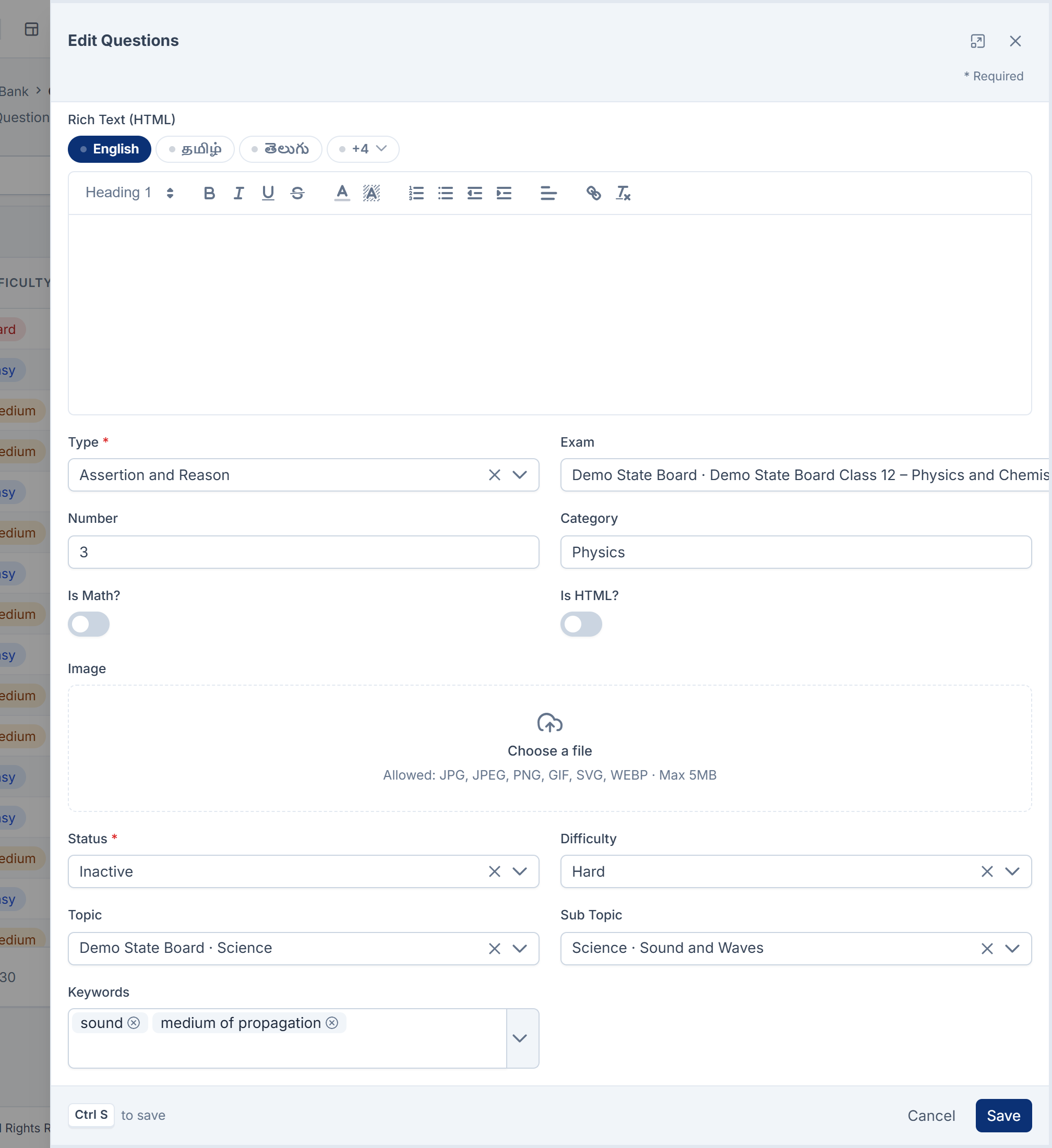
Careful: Editing a question that's already in a mock test changes it in that test too, including for learners who have already sat it. Their answers, and whether each was marked right or wrong, stay as they were when they sat the test, but the review shows them against the edited question.
Re-file questions under a topic
-
On Question Bank › Questions, select the questions' rows.
-
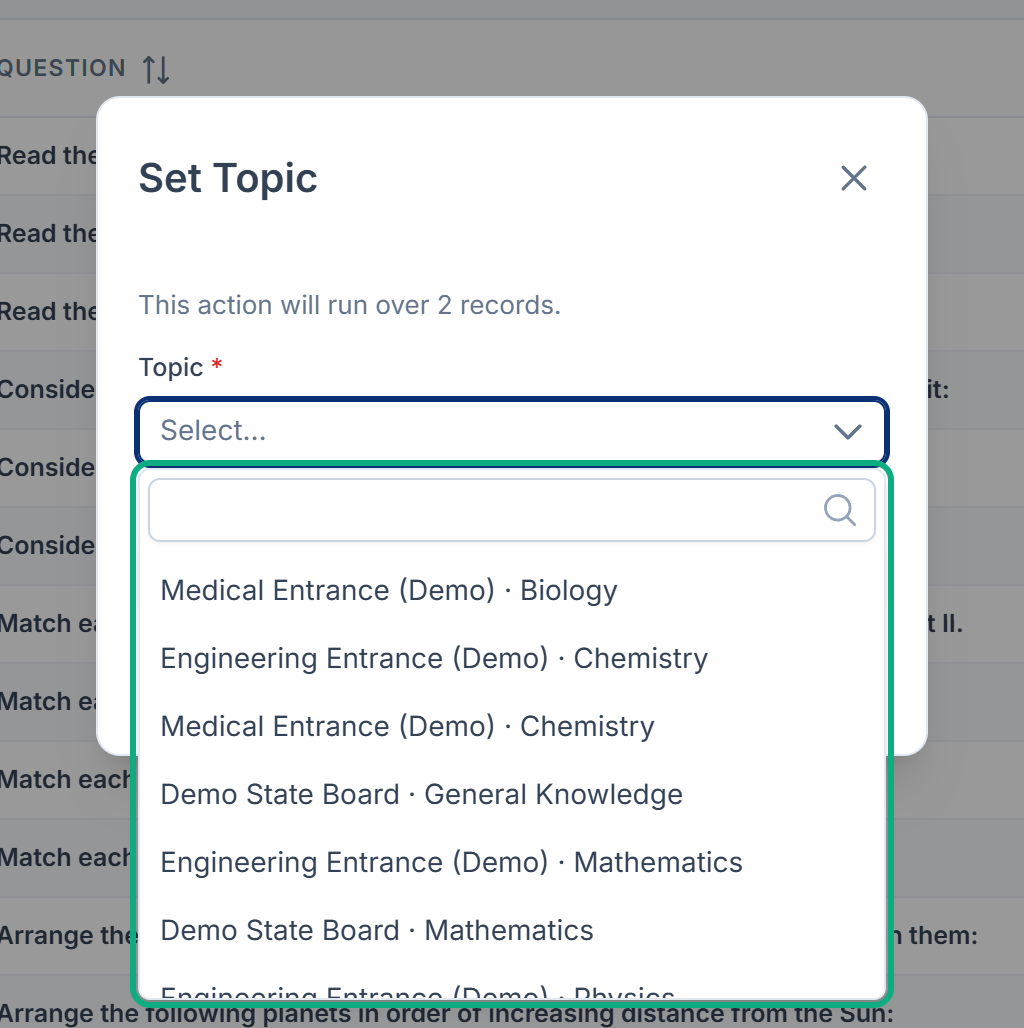
From the bulk actions, choose Set Topic.
-
Choose the Topic, and optionally a Sub Topic of that topic.
-
Confirm.
Every selected question is moved. If the sub topic belongs to another topic, nothing is changed and you see The selected sub topic does not belong to the selected topic. You need Edit Question for each question.
Delete and restore
Delete questions from the row's actions menu, or several at once from the bulk actions. They go to the trash, and you can restore them from the Trashed view. Deleted questions drop out of mock tests. See Delete, restore and act on records in bulk.
What happens next
- Create a mock test from your questions.
- Print a question paper and OMR answer sheet.
Thanks. That helps us decide what to write next.
Thanks for telling us what was missing.
You already answered for this article today. Thanks.
We got a lot of answers from your network just now. Try again in a few minutes.
We couldn't send that. Check your connection and try again.
Links in this article
Printed from help.laramin.in. The online article may have changed since.