Sign in for the first time
Sign in to the Laramin admin with your email and password, get past two-factor and the choosers, and secure your account straight away.
Why this step
Your account is yours alone. Everything you do in Laramin is recorded under your name.
Today you only need:
- Applies to
- Core 12.0 and later
- Who can do this
- Platform owner, Administrator, Team member
- Where
- Sign-In screen, at /admin/login
Before you start
- Have the email address and password for your account. If you installed Laramin yourself, use the administrator account you created in the installer. An administrator can also create a user for you.
- Know your sign-in address. It's usually your site's address followed by
/admin, for examplehttps://crm.example.com. If your installation uses a different address, ask your administrator./admin
Steps
- Open your admin address, for example
https://example.com. You see the Sign-In screen./admin/login - In Email, enter your email address.
- In Password, enter your password.
- If you want to stay signed in on this browser, select Remember me.
- Select Sign in.
Tip: If Trust this device is shown, you can select it on a computer you use often. Laramin then skips the two-factor step on this browser until the trust expires. Your administrator decides whether this option is offered.
What you might see after Sign in
-
Two-Factor Authentication: enter the 6-digit code from your authenticator app in Authentication Code, then select Verify. If you don't have your phone, select Use a recovery code. See You can't sign in because you lost your authenticator app.
-
Set a New Password: an administrator set your password, and you must choose your own. See Set a new password when Laramin asks.
-
Choose a business or How do you want to work?: you can reach more than one workspace or experience, and Laramin can't tell which you want. If you can enter the installation's default workspace, Laramin opens that one instead of asking. See Choose a workspace and experience at sign-in.
-
No business yet or Nothing to open here: you don't have access yet. See You see "No business yet" or "Nothing to open here".
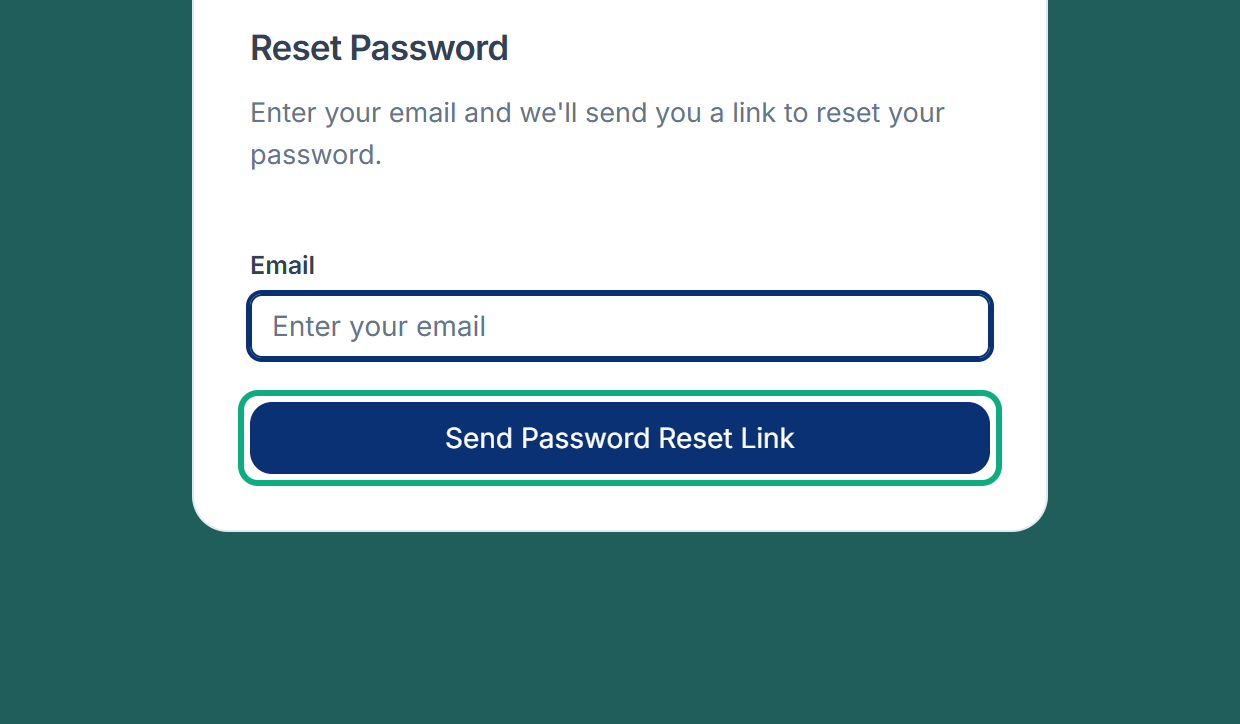
If you forgot your password, select Forgot your password? on the Sign-In screen. Enter your email and select Send Password Reset Link. The link in the email expires in 60 minutes.
Careful: After a few wrong passwords, the screen may ask you to Enter the code shown. After more failed attempts, Laramin locks sign-in for that email for a while. By default that is 5 failed attempts and 15 minutes; your administrator can change both.
What happens next
Laramin opens the home page of your experience. Two things are worth doing now:
- If you signed in with the seeded account admin@admin.com, change your password at once. Its default password is public.
- Set up two-factor authentication, especially on a super admin account.
Links in this article
Printed from help.laramin.in. The online article may have changed since.