Create a task and set a reminder
Add a task with a due date, give it to someone, and set a reminder before it's due or at a time you choose.
Optional. This step needs Activities. If your Laramin doesn't have it, or your team doesn't use it, skip it.
Skip for nowWhy this step
If your team uses Task: A piece of work with a due date, given to you or to someone else., add your own and let Laramin remind you before they're due.
Today you only need:
- Applies to
- Activities 3.1 and later
- Who can do this
- Team member, Administrator
- Permission
feature.act. task. create - Where
- Activities › Tasks
Before you start
- You need Create Task (
feature.). To add a reminder, you also need Create Reminder (act. task. create feature.).act. reminder. create - Work in a single workspace. A task is created in the workspace you're in, and can't be moved later. In All Workspaces, Laramin says Switch to a single workspace before creating work. See Switch workspace.
Steps
Create the task
-
In the sidebar, open Activities › Tasks.
-
Select New Task.
-
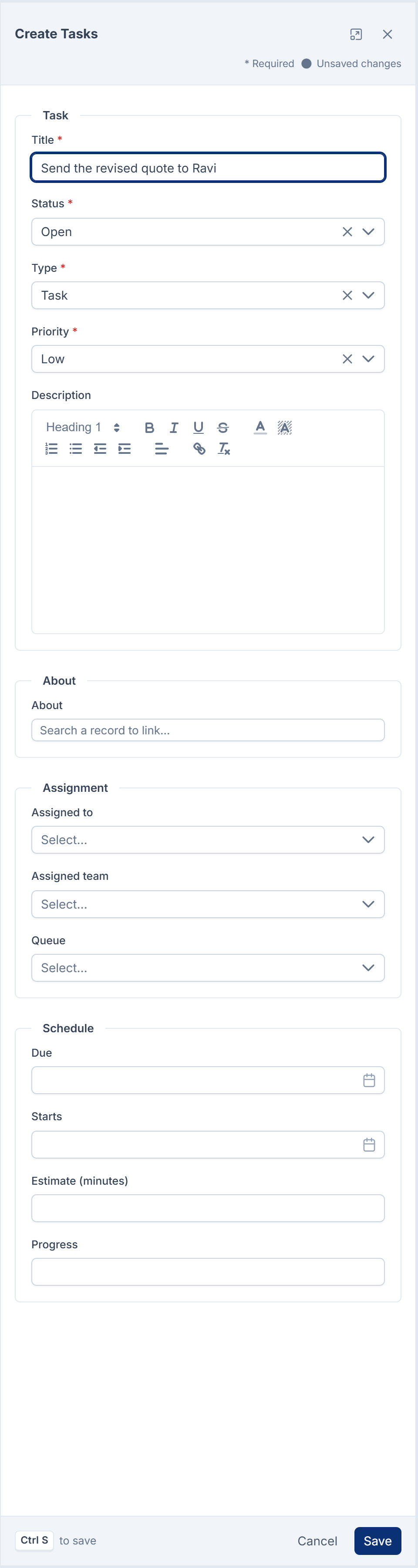
Enter a Title, up to 255 characters, for example "Send the revised quote to Ravi".
-
Check Status, Type and Priority. A new task starts as Open, Task and Low.
-
Optionally, add a Description, up to 5,000 characters of text.
-
Optionally, under About, choose the record the task is about, such as a client or a quote. The list shows the records that your other modules offer. You can't change this after you save the task.
-
Under Assignment, choose who does the work:
- Assigned to: one person.
- Assigned team: a team.
- Queue: a shared queue that its members claim from. See Share work through a queue and claim a task.
-
Under Schedule, set Due to the date and time the work must be done. Optionally, set Starts and Estimate (minutes).
-
Select Save.
You see Created. The task appears in the list with its number, for example TSK-2026-000123.
If whoever runs your Laramin's server has set default reminders (ACT_, in minutes before the due date, such as 60,1440), a new task with a due date gets them as soon as it's saved. They're delivered in the app and show in the task's reminders marked Set by default. You can cancel them like any other reminder. No default reminders are set unless your server sets them, and a task without a due date gets none.
You can also add a task from a record's Work card, in modules that show one, with Add task. That task is about the record already.
Set a reminder
-
In the list, select the task to open it.
-
Under Related, select Remind me, or press R.
-
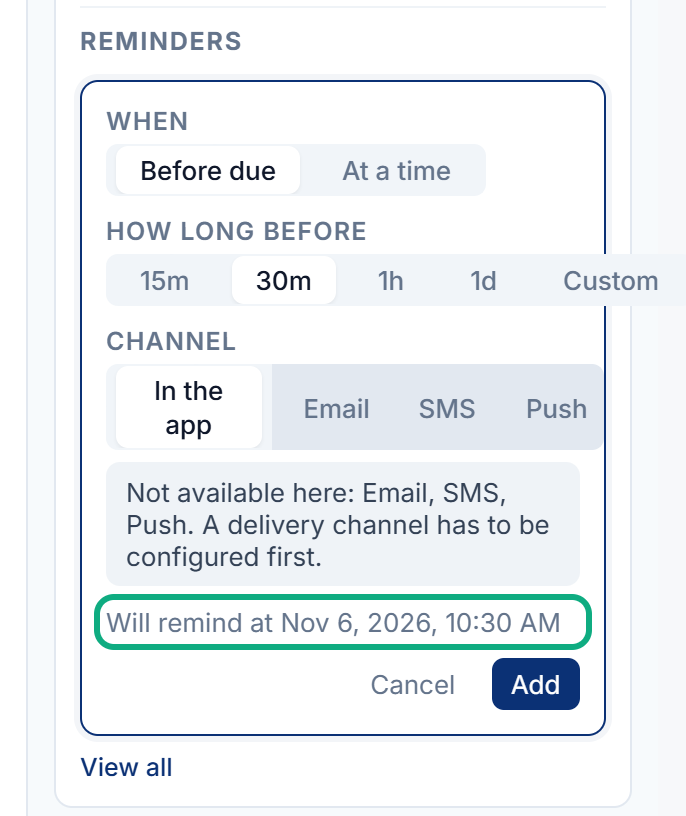
Under When, choose one:
- Before due: under How long before, choose 15m, 30m, 1h or 1d. Or choose Custom and type a duration such as
2hor1h 30m. This needs a due date on the task. - At a time: under Date and time, choose when. It must be in the future.
- Before due: under How long before, choose 15m, 30m, 1h or 1d. Or choose Custom and type a duration such as
-
Under Channel, leave In the app selected. A channel your Laramin can't deliver on is grayed out, and the form says which ones aren't available.
-
Check the line Will remind at, which shows the exact time.
-
Select Add.
You see Reminder set. The reminder appears in the list with the state Scheduled.
If a reminder already exists for that time and channel, you see A reminder is already set for that time on that channel.
What happens next
- The reminder arrives as a notification for the person in Assigned to, not for whoever set it. A task with nobody assigned sends its reminder to nobody, though the reminder still changes to Sent. Remind me reads as if the reminder is for you, but it goes to the task's assignee; to be reminded yourself, assign the task to yourself.
- Reminders are sent by a job that runs every 5 minutes, and can arrive up to 30 minutes before the time shown. They need your Laramin's scheduled jobs to run, and they're saved to the bell only while Notification Manager is on. In the bell, a reminder shows the task's title and doesn't open the task. If a reminder doesn't arrive, see A task reminder didn't arrive.
- Reminders are delivered in the app. Email, SMS and Push are grayed out under Channel with No delivery is set up for this channel., even when Notification Manager has providers connected.
- If you move the due date, reminders set Before due move with it. Reminders set At a time stay where they are.
- When the task is done, reminders that haven't been sent show Not needed — the task was done.
- To cancel a reminder that hasn't been sent, select Cancel reminder (the cross) in its row.
Next, see Work through a task: checklist, comments and files.
Links in this article
Printed from help.laramin.in. The online article may have changed since.