Filter a list
Narrow any list to the records you need with the filter bar, a column's own filter or the advanced "and / or" filter. See how many records match before you apply.
Why this step
Most lists have more rows than you need. A Filter: A rule that hides the rows you don't need, such as Status is Open. shows only yours, such as your open tasks.
Today you only need:
- Applies to
- Core 12.5 and later
- Who can do this
- Administrator, Team member
Before you start
- Filters only appear on lists that offer them. A list with nothing to filter on has no Filters button.
- The search box at the top left is separate from filters. Its placeholder says what it searches, for example "Search title, owner, phone…".
Add a filter from the filter bar
-
Open the list. The filter bar sits above the table, with a chip for each filter the list uses most.
-
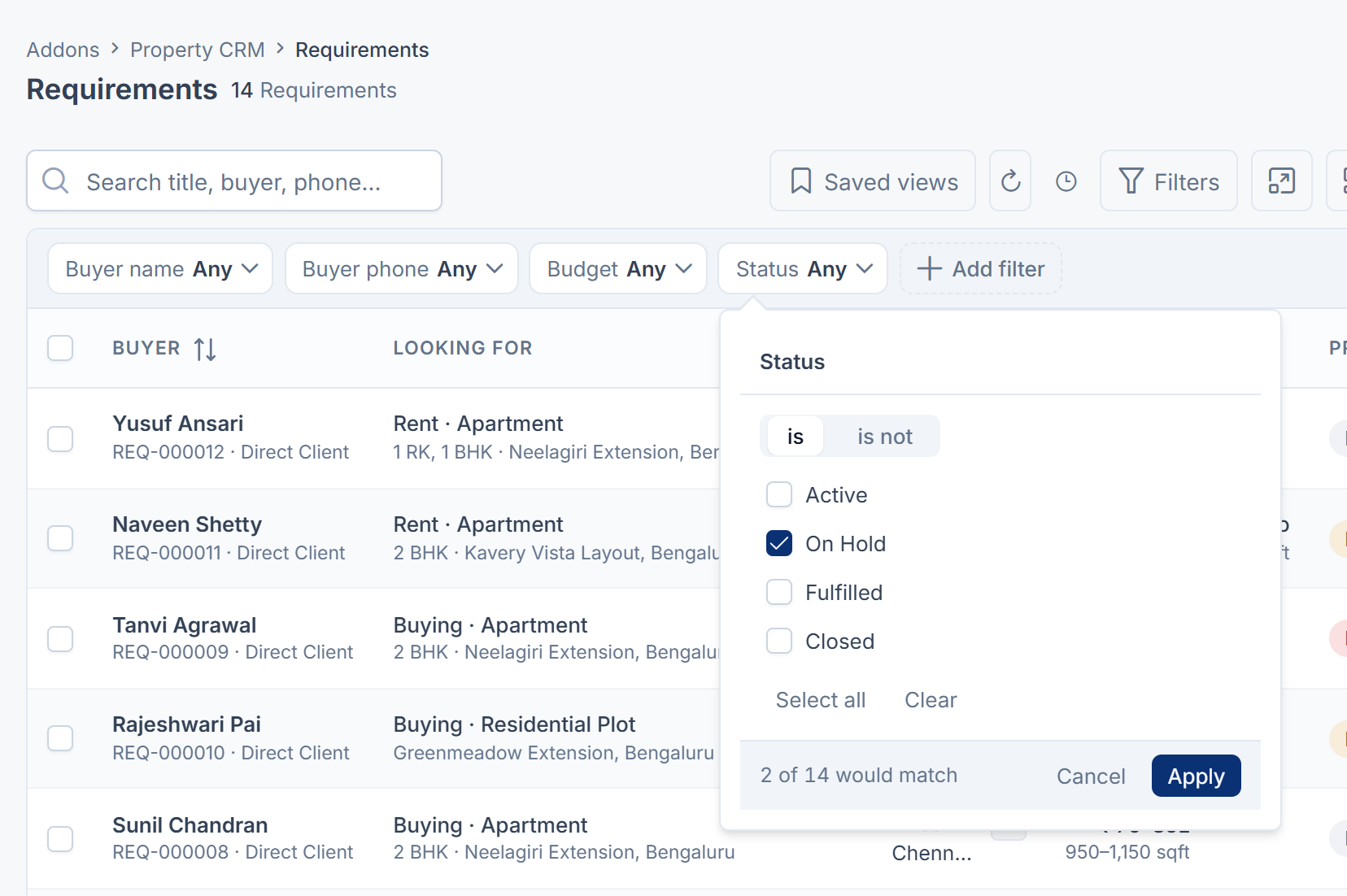
Select a chip, for example Status. Its editor opens.
-
Choose a value. The editor fits the kind of filter: a checklist for a short set of choices, a search for a long one, From and To boxes for amounts, and presets such as Today, Last 7 days or This month for dates.
-
Check the count under the editor, for example "3 of 14 would match".
-
Select Apply.
To filter on something that has no chip, select Add filter, or press F. Type in Find a filter to narrow the list of fields, then choose one. Filters that are already running are listed under Already filtering.

Tip: For an amount, leave one side empty to filter on "at least" or "at most". Where the list shows amounts in units such as Lakh or Crore, type the filter in the same unit. The full amount is spelled out under the box.
Use a column's own filter
- Find the funnel icon in a column heading.
- Select it, choose a value, and apply it.
If you prefer a row of filter boxes under the headings, open the gear (⚙) button in the toolbar and set Filters to Inline. Menu puts the funnels back.
Build an advanced "and / or" filter
-
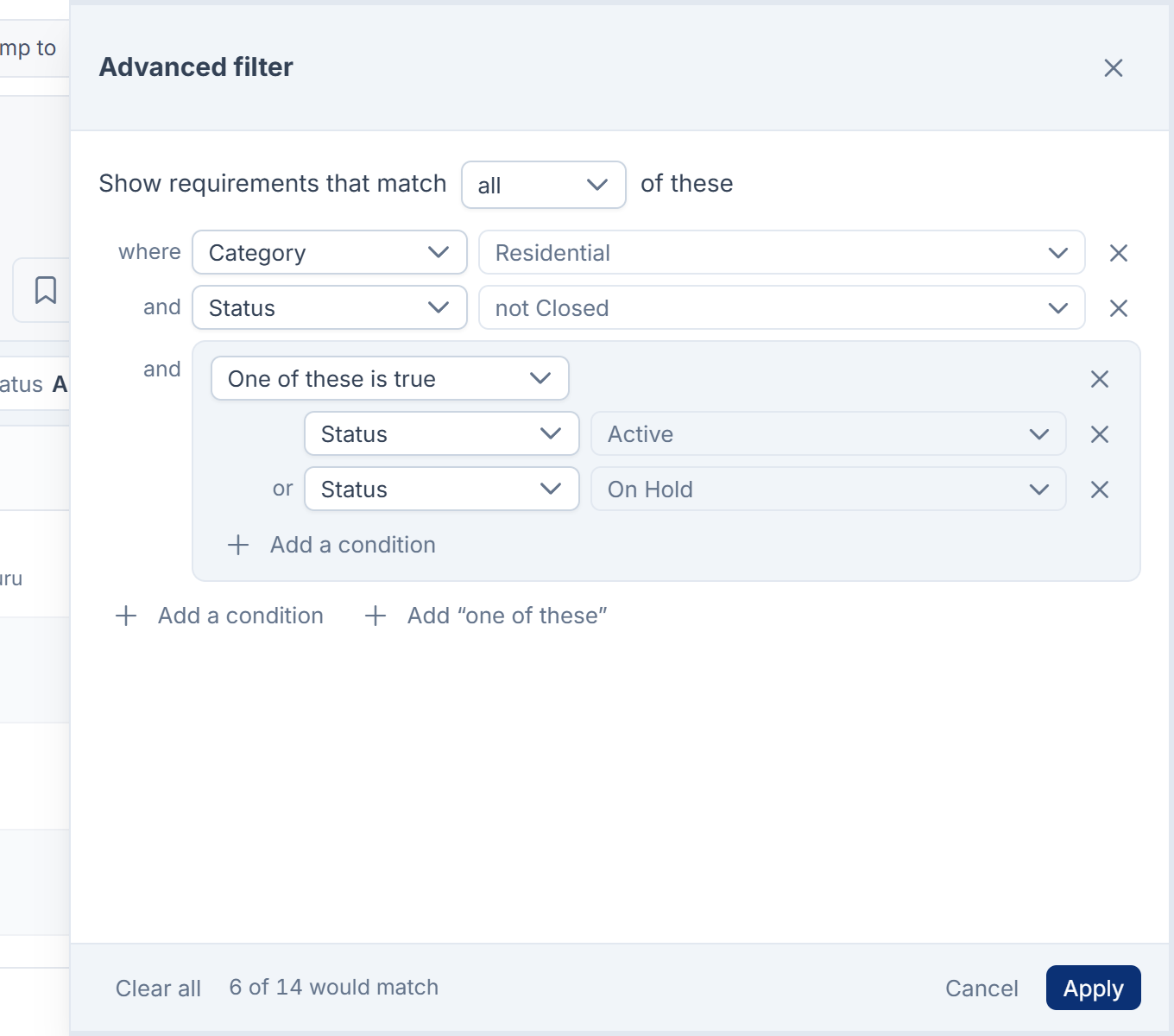
Select Filters in the toolbar, then Advanced filter… at the bottom of the list of fields.
-
The Advanced filter panel opens beside the list. Choose whether to show records that match all or any of the conditions.
-
Select Add a condition, then choose a Field, a comparison and a value.
-
To nest an "or" inside an "and", select Add "one of these".
-
Select Apply.
The advanced filter shows on the filter bar as one chip. Some lists can only match all conditions. They say so in the panel: This list can only match all of its conditions.
Remove filters
- To remove one filter, select the × on its chip. A message offers Undo.
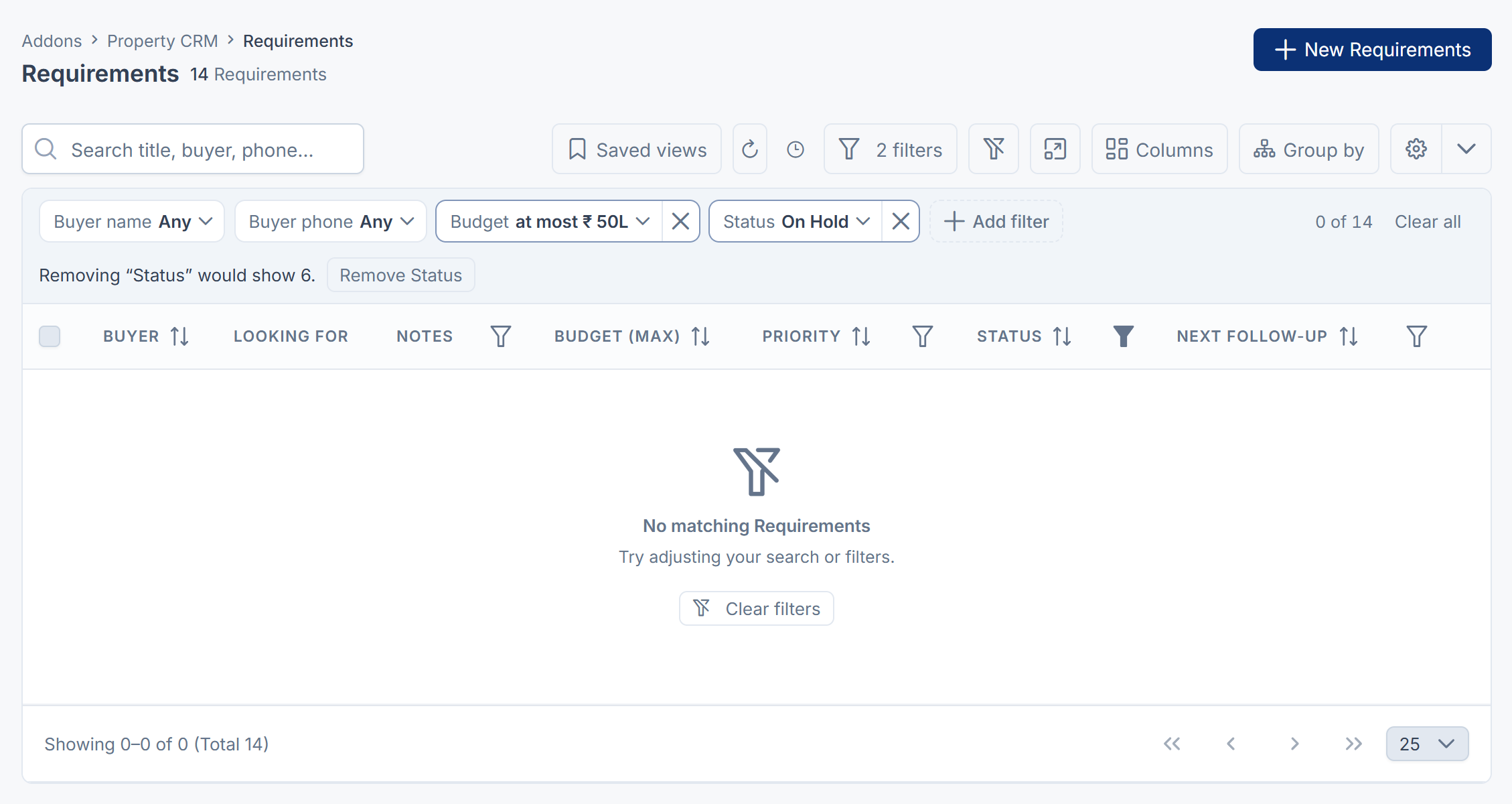
- To remove them all, select Clear all on the filter bar, or the Clear filters button in the toolbar. Clear filters also clears the search box.
When nothing matches, the bar suggests which filter to drop, for example Removing "Status" would show 12. with a button to remove it.
What happens next
The Filters button shows how many conditions are running, for example 2 filters, so you can't forget a filter is on. The filter is also kept in the page address, so you can bookmark the page or send the link to a colleague.
If the filter is too long for the address, the bar says This filter is too long to keep in the address. Save it as a view to keep it. See Save and share a view.
Some filters can't run on a particular list. Instead of showing an empty list, the bar says why, for example That filter is not available for this list. or That filter has too many conditions.
Links in this article
Printed from help.laramin.in. The online article may have changed since.