Create a user
Add someone to Laramin, choose their roles and experiences, and give them a way to sign in.
Why this step
Each colleague gets their own sign-in, so every action is recorded against the right person. They must join your business's Workspace: One business inside Laramin, such as Ambrovale Homes. to be given leads there. In the Property CRM Experience: How Laramin is arranged for someone: its menu, layout and home page., Users is under Property CRM › Users.
Today you only need:
- Applies to
- Core 12.0 and later
- Who can do this
- Administrator, Platform owner
- Permission
feature.core. user. create - Where
- Users Accounts › Users (Platform Administration)
Before you start
- Have the person's name and an email address they can open.
- Decide on their roles. If none of the existing roles fits, create one first in Roles & Permissions.
- Know which workspace they'll work in. You add them to it separately, after you create the user.
Steps
-
In the menu, open Users Accounts › Users.
-
Select Create.
-
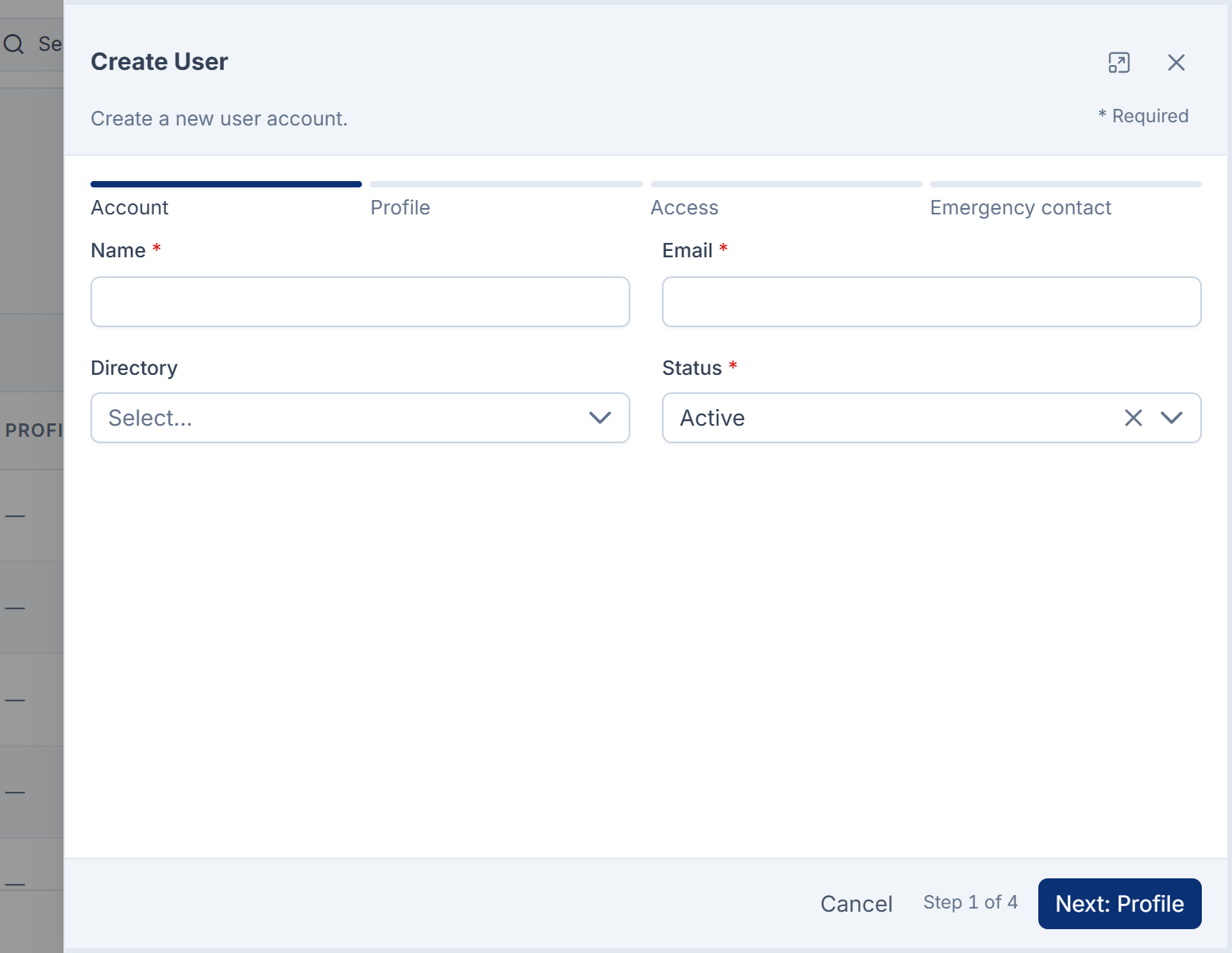
On the Account step, enter Name and Email.
-
Choose the Directory (Staff or Portal) and set Status to Active.
-
Select Next: Profile.
-
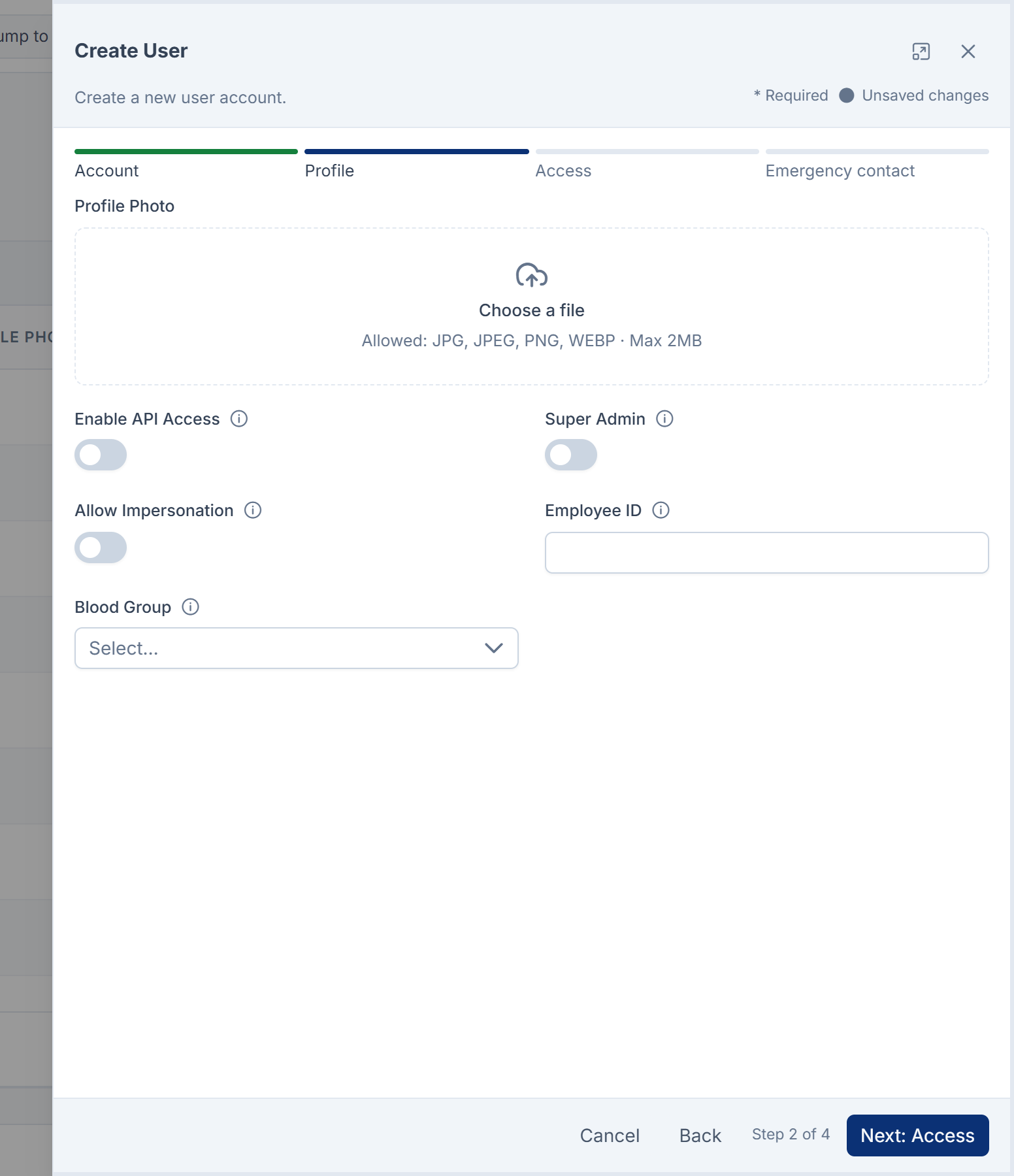
On the Profile step, add a Profile Photo if you like, and turn on Enable API Access only if they need it. Fill in any custom fields your installation adds. Select Next: Access.
-
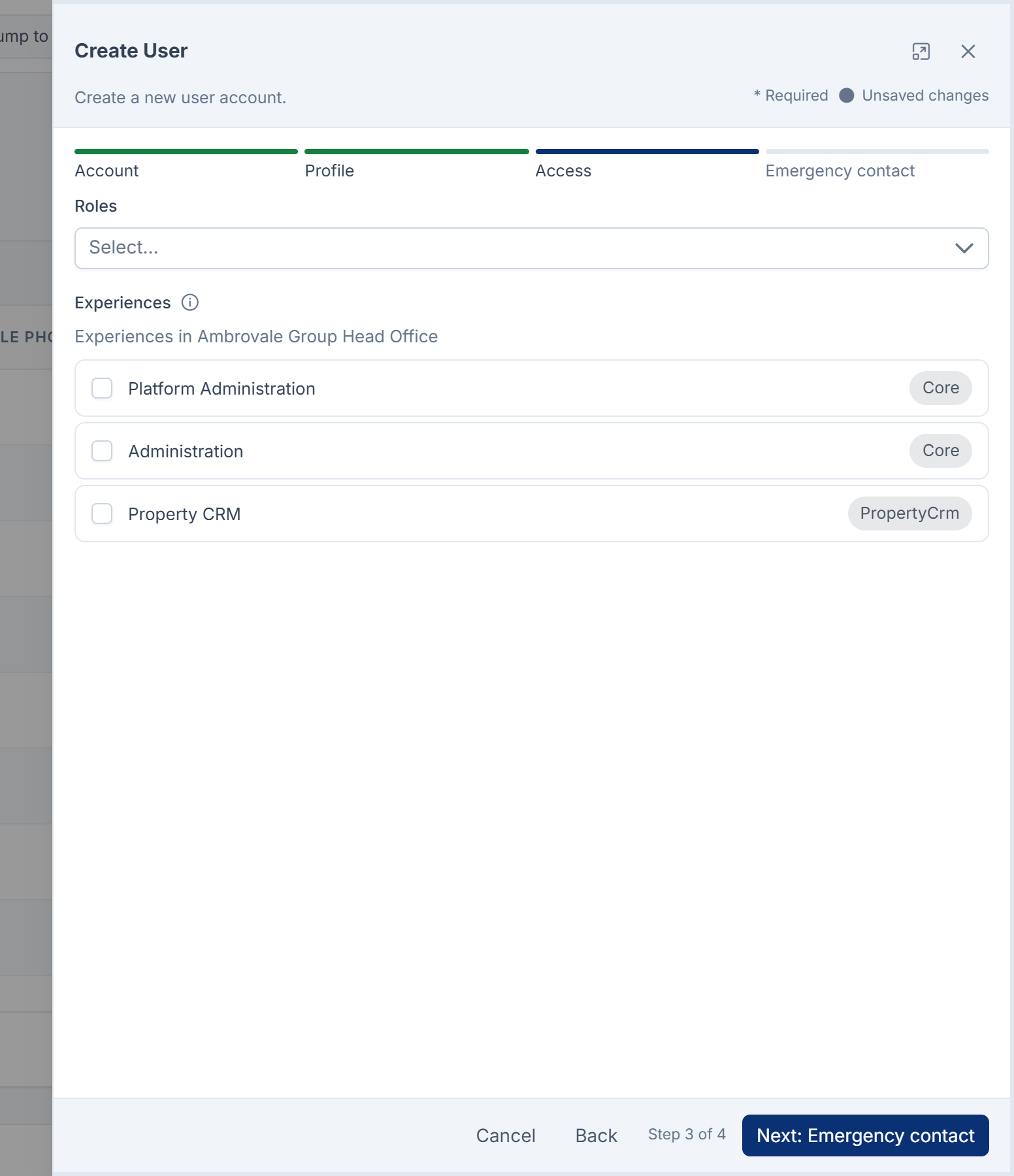
On the Access step, choose their Roles. Then tick the Experiences they can open in the workspace you're working in.
Careful: A super admin skips every permission check. Only make someone a super admin if they will run the whole platform.
-
Select Save.
Let them sign in
A new user has no password they know: Laramin gives the account a random one. Before they can sign in, do one of these:
- Send a reset link so they choose their own password.
- Set a temporary password that they must change the first time they sign in.
Both are explained in Reset or set a user's password.
Add them to a workspace
Creating a user doesn't add them to a workspace. Until you do, they see "No business yet" after signing in. Add them under Workspace Members, as described in Create a workspace. For team-scoped access, also add them to a team.
Tip: If you tick more than one experience, the person picks the one they start in. They can make it their default with Make this my default here.
Links in this article
Printed from help.laramin.in. The online article may have changed since.